Laptop Battery Draining Fast? 9 Ways to Improve Battery Life on Windows 11 (2026)
Laptop Battery Draining Fast? 9 Ways to Improve Battery Life on Windows 11 (2026)
Does your laptop lose battery power quickly after a full charge? Perhaps you unplug it in the morning, only to find that the battery is almost empty after a short period of work.
A laptop battery that drains unusually fast can interrupt your productivity, particularly when you are working remotely, attending online classes, travelling or working somewhere without a convenient power outlet.
However, fast battery drain does not always mean you need a new battery. High screen brightness, demanding applications, background processes, power settings, and battery ageing can all contribute to shorter battery life.
In this guide, Laptop Realm explains nine practical ways to improve laptop battery life on Windows 11, check battery condition and identify situations that may require professional assistance.
1. Reduce Your Screen Brightness
Your laptop display is one of the components that consumes power during normal use. Running it at maximum brightness when it is unnecessary can reduce the time you get from a charge.
How to reduce screen brightness
Open Windows Settings.
Select System.
Open Display.
Adjust the brightness to a comfortable level.
On supported laptops, you can also use the brightness keys on the keyboard.
If your laptop has an automatic brightness feature, check whether enabling it suits your working environment.
Practical tip: When working indoors, use the lowest brightness that allows you to read comfortably. You do not need maximum brightness for every task.
2. Enable Energy Saver in Windows 11
Windows 11 includes an Energy Saver feature designed to reduce power consumption.
Depending on your device and settings, it can help limit background activity and adjust system behaviour to extend battery life.
How to enable Energy Saver
Open Settings.
Select System.
Choose Power & battery.
Find the Energy Saver setting.
Turn it on or configure when it should activate automatically, where supported.
You can also access available power settings through the battery icon in the taskbar.
Energy Saver may reduce performance or background activity in some situations. That is useful for ordinary tasks when extending battery life matters more than maximum performance.
For demanding work such as video editing, gaming or software compilation, choose settings appropriate to your workload.
For additional instructions, consult the official Microsoft Windows battery-saving guide.
3. Identify Applications Consuming Too Much Power
Some applications consume considerably more power than others.
Video editing software, games, development environments, video conferencing tools and applications performing intensive background tasks can increase processor usage and battery consumption.
If your laptop battery drains quickly even when you are not doing much, investigate which applications are active.
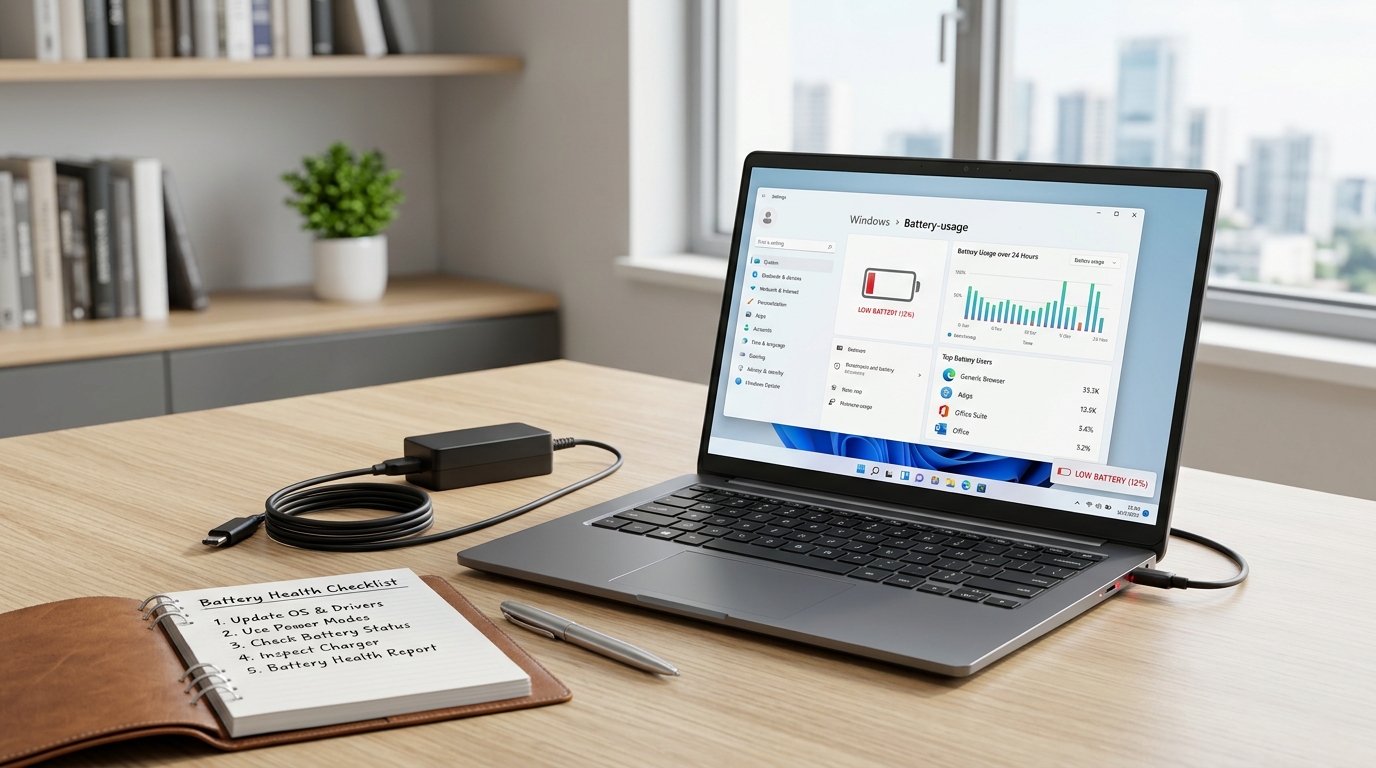
Check battery usage in Windows 11
Open Settings.
Select System → Power & battery.
Find the Battery usage section.
Review the available battery-usage information.
Identify applications that appear to be consuming significant power.
You can also press Ctrl + Shift + Esc to open Task Manager and review CPU and GPU usage.
Close applications you recognise and no longer need. If a particular application repeatedly consumes excessive resources, check whether an update is available or whether its background activity can be restricted.
Do not disable unfamiliar Windows system processes simply because they appear in Task Manager.
4. Reduce Unnecessary Background Activity
Some applications continue performing tasks when you are not actively using them.
Examples include cloud synchronisation, messaging applications, update services, and software that starts automatically with Windows.
Although some background activity is necessary, unnecessary processes can consume power.
What you can do
Close applications you are not using.
Disable unnecessary startup applications through Task Manager.
Review background permissions for applications that support them.
Pause large downloads or synchronisation when they are not needed.
Restart the laptop if an application appears to be stuck consuming resources.
Be selective. Disabling essential security software or system services can introduce problems without providing meaningful battery savings.
If you use your laptop mainly for browsing, document editing and online meetings, reducing unnecessary background activity can be a sensible starting point.
5. Disconnect Accessories You Do Not Need
External accessories can draw power from your laptop.
Depending on the device, these may include external storage drives, USB-powered accessories, wireless receivers and other connected equipment.
If you are working on battery power, disconnect accessories you do not need.
You can also turn off Bluetooth when it is unnecessary and use Airplane mode when you do not need wireless connectivity.
However, do not disable Wi-Fi if you need it for work, online classes or communication. The goal is to reduce unnecessary power consumption without interfering with essential tasks.
6. Check Your Laptop Battery Health
If your laptop battery drains quickly despite sensible power settings, check its reported condition.
Lithium-ion batteries gradually lose capacity through normal ageing and use. As their capacity decreases, they store less energy than when they were new.
Windows includes a built-in tool that generates a battery report.
How to generate a battery report
Open the Start menu.
Search for Command Prompt.
Open it.
Enter the command below:
powercfg /batteryreport
Press Enter.
Note the file location displayed in the Command Prompt window.
Open the generated HTML report in your browser.
Look for the Installed battery section and compare these two figures:
Design Capacity: The battery's original rated capacity.
Full Charge Capacity: The capacity the battery currently reports as available when fully charged.
For example, suppose a battery originally had a design capacity of 50,000 mWh but now reports a full-charge capacity of 30,000 mWh.
That represents approximately 60% of the original rated capacity.
This does not provide a perfect measurement of real-world battery life, but it helps you understand whether battery wear may be contributing to the problem.
Also review the recent usage information and battery-life estimates.
Microsoft explains how to generate and interpret the report in its official Windows battery-care guide.
Important: Do not replace a battery based solely on one report value. Consider actual runtime, unexpected shutdowns, charging behaviour and the laptop manufacturer's diagnostic recommendations.
7. Adjust Sleep and Screen Timeout Settings
A laptop can continue consuming power when you leave it unattended, particularly if it remains awake or has applications preventing it from entering sleep.
Adjusting the screen and sleep settings can help reduce unnecessary battery consumption.
How to change the settings
Open Settings.
Select System → Power & battery.
Expand the screen, sleep and related timeout settings.
Choose suitable intervals for battery operation.
For example, you might configure the screen to turn off after a few minutes of inactivity and the laptop to enter sleep after a longer period.
The best intervals depend on how you work.
If your laptop loses a substantial amount of charge while closed, check whether it is actually entering sleep or whether connected devices and applications are keeping it awake.
Some laptops also support different sleep behaviours, so consult the manufacturer's documentation if the problem persists.
8. Manage Heat and Charging Habits
Temperature can affect battery performance and long-term battery health.
Excessive heat can accelerate lithium-ion battery deterioration, reducing its capacity over time.
Practical battery-care habits
Use your laptop on a hard, level surface.
Keep its ventilation openings clear.
Avoid leaving it in direct sunlight or a hot vehicle.
Use a compatible charger that meets the manufacturer's requirements.
Avoid continuing to use a laptop that shows signs of battery swelling.
Microsoft recommends avoiding excessive heat and explains how charging habits can influence battery longevity in its official battery-care guidance.
Where supported, a manufacturer's smart-charging feature can help manage charging limits when a laptop spends long periods connected to power.
You do not need to repeatedly discharge a healthy lithium-ion battery completely. Instead, follow the manufacturer's charging recommendations for your specific device.
Safety warning: If the battery is swollen, the laptop chassis is bulging or the touchpad has lifted unexpectedly, stop using the device. Do not press, puncture or attempt to remove the battery yourself. Arrange appropriate professional assistance.
9. Update Windows and Check for Hardware Problems
Software problems can sometimes contribute to excessive battery consumption.
An application may malfunction, a driver may behave incorrectly or a system process may continue using resources unnecessarily.
Check for appropriate updates
Open Settings, navigate to Windows Update and check for available updates.
You can also visit the official support page for your laptop model to check for relevant chipset, power-management and firmware updates.
Install updates appropriate to your device and follow the manufacturer's instructions.
If the laptop suddenly starts losing battery power after a software change, investigate recently installed applications and updates rather than assuming the battery has failed.
If the battery continues draining quickly despite troubleshooting, consider other possible causes, including battery deterioration, charging-system faults or hardware problems.
A qualified technician can help establish whether a battery replacement or another repair is necessary.
How Long Should a Laptop Battery Last?
There is no single battery-runtime figure that applies to every laptop.
Battery life depends on factors such as:
Battery capacity and age.
Processor and graphics hardware.
Display size and brightness.
Applications and workload.
Wireless connectivity.
Power-management settings.
Ambient temperature.
A laptop performing video editing or gaming will generally consume power differently from one used for document editing.
Similarly, two laptops with different battery capacities cannot be expected to deliver identical runtimes.
When comparing laptops, look for independent tests of the exact model and configuration, and consider whether the testing conditions resemble your actual usage.
Manufacturer estimates can provide useful context, but real-world results will vary.
When Should You Replace Your Laptop Battery?
Consider having the battery inspected if:
Runtime has declined substantially over time.
The laptop shuts down unexpectedly while showing charge remaining.
The battery report indicates significant capacity loss.
The battery does not charge correctly with a compatible adapter.
The manufacturer reports a battery fault.
A replacement may restore useful portable runtime if the battery is the underlying problem.
However, not every charging issue requires a new battery. A damaged charging port, unsuitable adapter, or other hardware fault can produce similar symptoms.
Before purchasing a replacement, confirm the exact laptop model and battery compatibility. Check whether the replacement is genuine or compatible, and review the applicable warranty and installation terms.
Never attempt to continue charging a visibly swollen or damaged battery.
Need Help Choosing a Laptop in Ikeja, Lagos?
If your laptop no longer provides enough battery life for work or school, start by checking its battery health and power settings.
Sometimes a few adjustments are enough. In other cases, the battery may have deteriorated or the laptop may have a hardware problem that requires further diagnosis.
If you are considering a replacement laptop, think about your main requirements: battery life, portability, performance, memory, storage, and budget.
Laptop Realm serves customers looking for laptops and technology products in Ikeja, Computer Village, Lagos.
You can contact Laptop Realm to enquire about available laptops and compare suitable options for your needs. Confirm current product availability, specifications, prices and applicable warranty terms before purchasing.
A laptop that suits your workload and mobility needs can make everyday work more convenient. Choose based on verified specifications and realistic expectations rather than battery-life claims alone.