Laptop Plugged In but Not Charging? 9 Causes and Fixes (2026 Guide)
Laptop Plugged In but Not Charging? 9 Causes and Fixes
You connect your laptop charger, but the battery percentage refuses to increase. Windows may display “Plugged in, not charging”, or the laptop may continue losing battery power even though the charger is connected.
This problem can be frustrating, particularly when you need your laptop for work, school, programming, or an important meeting.
The good news is that a laptop that is not charging does not automatically need a new battery. The cause could be an incompatible charger, a loose connection, a battery protection setting, a worn battery, or a hardware fault.
This guide explains nine possible causes of laptop charging problems and the checks you can perform safely before seeking professional assistance.
1. Check the Power Socket and Charger Connections
Start with the simplest possibility: the laptop may not be receiving power properly.
A loose wall connection, disconnected cable, or faulty extension socket can interrupt charging.
What to do
Save your work and shut down the laptop if necessary.
Check that the power cable is firmly connected to the charger.
Check the connection between the charger and laptop.
If safe, test a different, known-working wall socket.
Inspect the power cable and adapter for visible damage.
In environments where electricity comes from the mains, an inverter, or a generator, confirm that the power source and connections are functioning normally.
Do not use a cable or adapter with exposed wires, melted plastic, or signs of burning.
If you notice sparking, a burning smell, or unusual electrical heating, disconnect the power at a safe point and stop using the equipment.
2. Check Whether the Charger Is Compatible
A charger may fit the laptop's power connector without supplying the correct power.
Laptops have specific charging requirements. Using an incompatible adapter can result in no charging, slow charging or reduced performance.
Check the charger's output specifications and compare them with the requirements for your exact laptop model.
Pay attention to:
Output voltage.
Supported current and wattage.
Connector type.
Manufacturer compatibility requirements.
USB Power Delivery support, where applicable.
A higher-wattage charger is not automatically suitable for every laptop. Compatibility depends on the laptop's charging design and the charger's electrical specifications.
What if you use USB-C charging?
Not every USB-C port supports charging, and not every USB-C charger supplies sufficient power for every laptop.
Confirm that your laptop supports charging through the port you are using and that the charger and cable meet its requirements.
If you are unsure, consult the laptop manufacturer's documentation before purchasing a replacement.
3. Check Whether the Battery Has Reached Its Charging Limit
Some laptops include battery conservation features designed to reduce battery wear when the computer spends a long time connected to power.
These features may intentionally limit charging to a selected percentage, such as 60% or 80%, depending on the manufacturer and model.
If your laptop repeatedly stops charging at approximately the same percentage, check whether a battery health, conservation, or charge-limit setting is enabled.
Look in the manufacturer's battery management application or BIOS/UEFI settings, using the instructions for your specific model.
Important: A laptop that stops charging at a configured limit may be operating normally. Do not assume the battery is faulty simply because it does not reach 100%.
4. Check the Battery's Health
Laptop batteries gradually lose capacity through normal use and ageing.
A worn battery may charge slowly, provide very little runtime or fail to hold a charge.
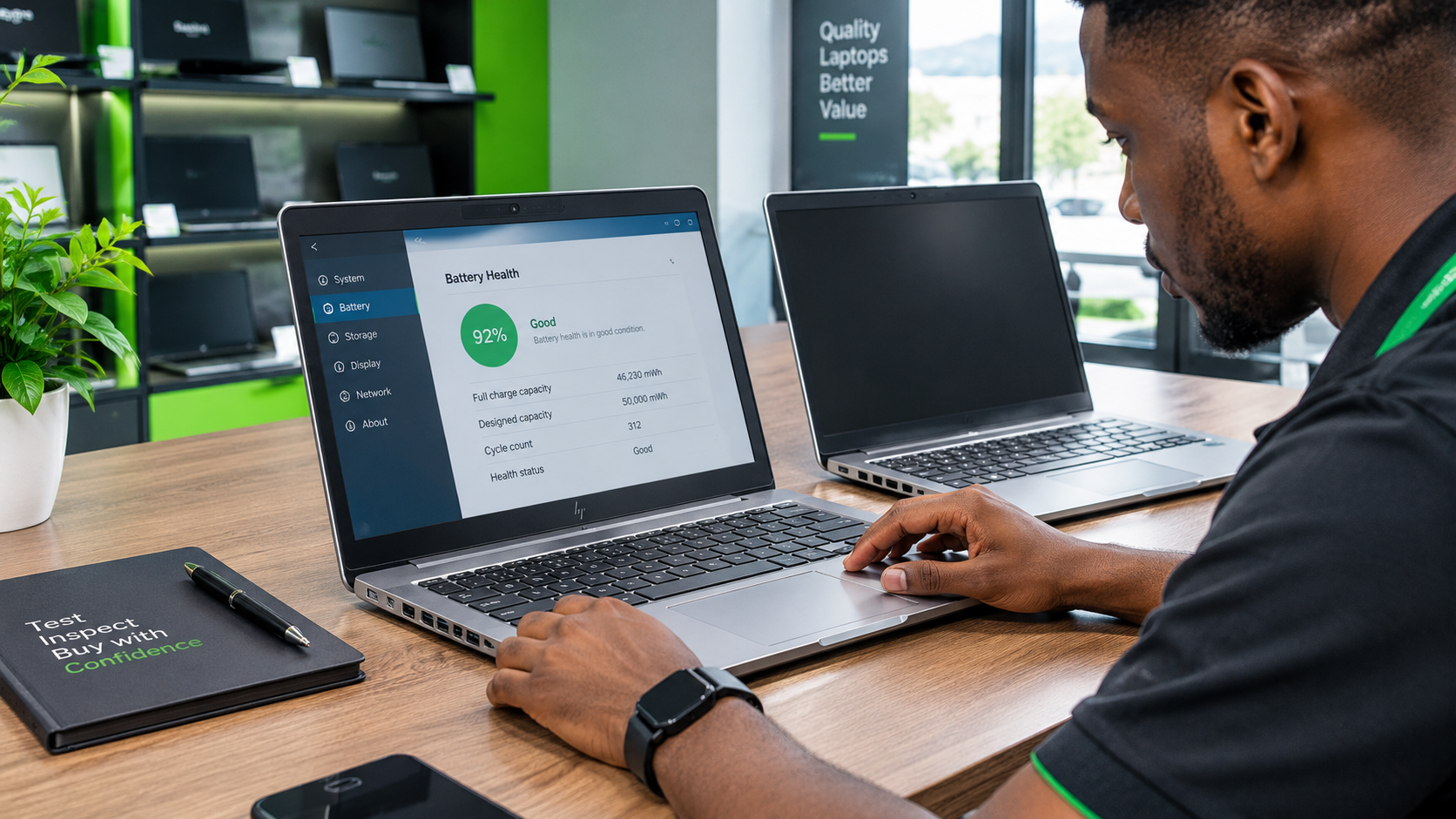
Generate a battery report in Windows
If your laptop runs Windows, you can generate a battery report:
Open the Start menu.
Search for Command Prompt.
Open it.
Enter
powercfg /batteryreport.Press Enter.
Open the report using the file location displayed in the command window.
Where available, compare the reported design capacity with the full-charge capacity.
A substantial difference can indicate battery wear, although the report does not diagnose every possible battery fault.
You can also check whether your laptop manufacturer provides a built-in battery diagnostic tool.
If the battery is significantly degraded, a compatible replacement may be necessary.
Safety warning: If the battery appears swollen or deformed, stop using and charging the laptop. Do not press, puncture or attempt to remove a swollen internal battery yourself. Seek qualified service.
5. Inspect the Charging Port
The charging port connects the power adapter to the laptop's internal power system.
A damaged, loose, or obstructed port may prevent reliable charging.
Possible warning signs include:
Charging starts and stops unexpectedly.
The connection feels unusually loose.
The charging indicator flickers when the laptop is moved.
The laptop fails to recognise a compatible charger.
There is visible damage around the connector.
With the charger disconnected, inspect the port visually without inserting metal objects or other tools.
Do not repeatedly bend or wiggle a charging connector to force it to work. This may worsen existing damage.
If the port is loose, damaged or intermittently connected, a technician may need to inspect it.
The underlying fault could involve the port itself or another component in the charging circuit. The exact cause cannot be confirmed from the symptom alone.
6. Disconnect Accessories and Restart the Laptop
Occasionally, a temporary power-management or system-state problem can affect charging behaviour.
A simple restart is a reasonable first software troubleshooting step.
Try this
Save your open documents.
Disconnect nonessential USB accessories and external devices.
Restart Windows normally.
Reconnect the appropriate charger.
Check whether the battery status changes.
If the laptop is unresponsive, consult the manufacturer's instructions for the correct power-reset procedure.
Some manufacturers provide model-specific reset instructions. Do not assume that the same button combination or procedure is appropriate for every laptop.
A normal restart will not repair a damaged charger or worn-out battery, but it can help distinguish a temporary software issue from a persistent hardware problem.
7. Check the Laptop's Charging and Battery Drivers
Windows uses system components and drivers to communicate with hardware, including the battery and power-management system.
A software problem may occasionally affect battery reporting or power management.
If the laptop is otherwise functioning normally, try the following:
Open Windows Update and check for relevant updates.
Restart the computer after installing applicable updates.
Open Device Manager and inspect the battery-related entries.
Look for warning symbols or error messages.
Avoid downloading unknown driver packages or running third-party utilities that promise to repair every charging problem automatically.
Do not update the BIOS or firmware as an experimental first step. Firmware updates should be obtained from the laptop manufacturer's official support page, and the manufacturer's instructions should be followed carefully.
If charging stopped after a software or firmware update, check the manufacturer's guidance for your specific model.
8. Check Whether the Laptop Is Consuming More Power Than the Charger Supplies
A laptop can sometimes lose battery power even while connected to a charger.
One possible explanation is that the adapter is supplying less power than the laptop requires under its current workload.
For example, an underpowered adapter may struggle to keep up when a laptop is running demanding applications.
Other possibilities include a faulty charger, a battery problem, or an issue within the laptop's power system.
What to check
Confirm that the charger meets the laptop's specified wattage requirements.
Close unnecessary high-demand applications.
Disconnect unnecessary accessories.
Allow the laptop to cool if it is unusually hot.
Check the charging status again during lighter use.
If charging improves when the laptop is idle, that is useful information, but it does not establish the exact cause.
Use the correct compatible adapter rather than assuming that any charger with the same connector will work.
9. Recognise When Professional Diagnosis Is Necessary
If the laptop still does not charge after you have checked the power source, charger compatibility and basic software settings, the problem may require professional diagnosis.
Possible hardware causes include:
A failed battery.
A damaged charging port.
A faulty power adapter.
A motherboard or charging-circuit fault.
A problem with another internal power-management component.
These faults can produce similar symptoms, so replacing components without diagnosis may waste money.
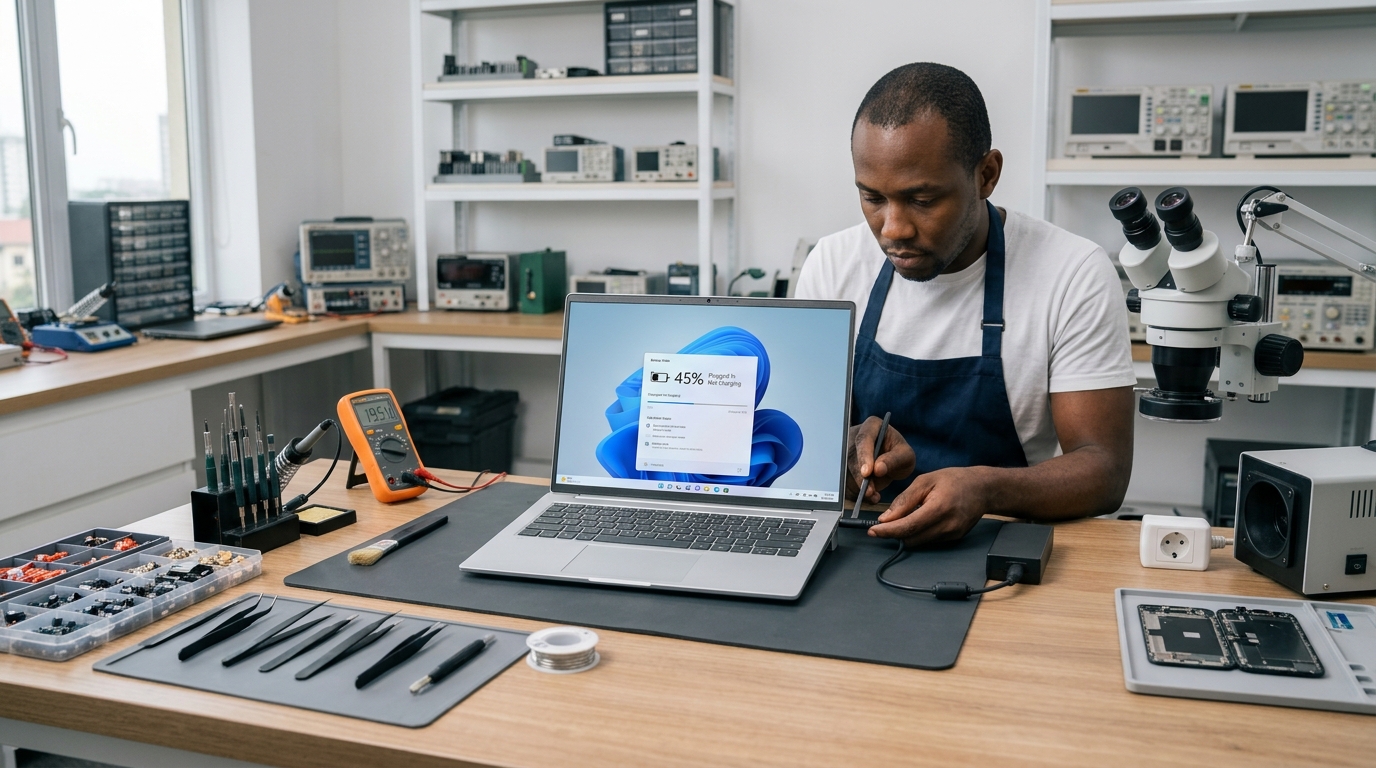
A technician can test the relevant components and determine whether the problem is with the charger, battery, charging port, or internal power circuitry.
If your laptop is still covered by a manufacturer's warranty, check the applicable service terms before arranging an unauthorised repair.
What about laptop repair costs in Nigeria?
Repair costs depend on the exact laptop model, the faulty component, the availability of compatible replacement parts, and the work required.
A charger replacement is a different job from replacing a battery or repairing a motherboard-level charging fault.
There is no single reliable price for every laptop charging problem. Request a diagnosis and quotation for your specific device before approving repairs.
How to Prevent Laptop Charging Problems
Good charging habits can help reduce avoidable problems.
Use a compatible charger that meets the manufacturer's specifications.
Protect cables from sharp bends and repeated pulling.
Avoid placing chargers under blankets or other objects that restrict ventilation.
Keep the laptop's charging port free from debris.
Avoid using damaged adapters and cables.
Follow the manufacturer's battery conservation recommendations.
Protect your equipment from electrical faults using suitable, properly rated power protection.
Investigate unusual charging behaviour before it becomes a complete power failure.
Do not assume that every charging problem is caused by poor battery maintenance. Batteries naturally wear out, and electronic components can fail even when a laptop is used carefully.
Final Verdict
When your laptop is plugged in but not charging, begin with the power socket, cable, charger compatibility, and charging settings.
Next, check battery health, inspect the charging port, and restart the system. If the problem persists, seek a proper diagnosis instead of buying replacement parts at random.
The key is to identify the actual fault before spending money.
Need Help With a Laptop Problem in Ikeja?
Laptop Realm serves customers looking for laptops and technology products in Ikeja, Computer Village, Lagos.
If you are experiencing charging problems or considering another laptop, contact Laptop Realm to enquire about available options and appropriate next steps.
Describe the symptoms, laptop model, and charger specifications where possible. Confirm the service being offered, any applicable charges, and the relevant terms before proceeding.
A correct diagnosis is more useful than replacing a battery or charger without knowing what caused the problem.