SSD vs HDD: Which Laptop Storage Is Best in Nigeria in 2026?
When shopping for a laptop in Nigeria, you may come across specifications such as 256GB SSD, 512GB SSD, 1TB HDD or 1TB NVMe SSD.
These figures describe the laptop's storage capacity and technology. However, choosing the right storage is about more than how many files your computer can hold.
Your storage drive affects how quickly Windows starts, how applications load, how files are transferred and how much space you have for documents, photographs, videos, software and games.
If you are buying a laptop for school, business, programming or everyday use, understanding the difference between an SSD and HDD can help you make a more informed decision.
This guide explains the main storage technologies, compares their practical advantages and shows you what to consider before buying or upgrading a laptop in Nigeria.
What Is an SSD?
SSD stands for Solid-State Drive. It stores data using flash memory and has no moving mechanical parts.
SSDs are commonly used in modern laptops because they offer fast data access, quiet operation and good resistance to physical movement compared with traditional mechanical hard drives.
An SSD can improve everyday responsiveness, particularly when replacing an older HDD that serves as the laptop's primary drive.
Benefits of an SSD
Faster everyday performance: Windows and applications generally load more quickly than from a comparable traditional HDD.
Quiet operation: An SSD has no spinning platters or mechanical read/write arm.
Better resistance to movement: The absence of moving mechanical parts makes SSDs less vulnerable to certain shocks and vibrations.
Efficient operation: SSDs generally use less power than comparable mechanical HDDs.
Flexible form factors: SSDs are available in different physical sizes and interfaces, depending on the device.
However, not all SSDs perform identically. The interface, controller, NAND technology, workload and laptop hardware can influence performance.
A premium SSD may offer little noticeable benefit over a suitable entry-level SSD for simple activities such as typing documents and browsing the internet.
What Is an HDD?
HDD stands for Hard Disk Drive.
A traditional HDD stores information on rotating magnetic platters and uses a mechanical read/write assembly to access data.
HDDs remain useful when storage capacity and cost per gigabyte are important considerations.
For example, a user who stores large collections of videos, photographs, archived documents or other files may find an HDD useful for additional storage.
Benefits of an HDD
Often offers a lower cost per gigabyte.
Can provide substantial storage capacity.
Can be useful for large archives and less frequently accessed files.
May be suitable for external backup storage.
Limitations of an HDD
HDDs have moving mechanical parts, making them more susceptible to damage from certain physical shocks while operating.
They are also generally slower than SSDs when starting applications and accessing scattered files.
A laptop with an HDD may still be suitable for basic computing, but the drive can become a performance bottleneck, especially when running Windows and several applications simultaneously.
SSD vs HDD: What's the Difference?
The following table summarises the practical differences.
| Feature | SSD | HDD |
|---|---|---|
| Storage technology | Flash memory | Magnetic platters and mechanical components |
| Windows startup | Generally faster | Generally slower |
| Application loading | Generally faster | Generally slower |
| Moving parts | None | Yes |
| Noise | Silent | Mechanical noise may be audible |
| Resistance to physical shocks | Generally better | More vulnerable to certain shocks |
| Power consumption | Generally lower | Generally higher |
| Cost per gigabyte | Generally higher | Generally lower |
| Common uses | Operating system, applications, active projects and games | Archives, backups and large file collections |
These are general comparisons. Actual performance and cost depend on the specific drives, capacities and configurations.
For a laptop used daily for work or school, an SSD is generally the more practical choice for primary storage.
SATA SSD vs NVMe SSD: Which Is Better?
Choosing between SSD and HDD is only the first decision. If you decide on an SSD, you may also need to choose between SATA and NVMe technology.
These terms describe different ways a drive communicates with the computer.
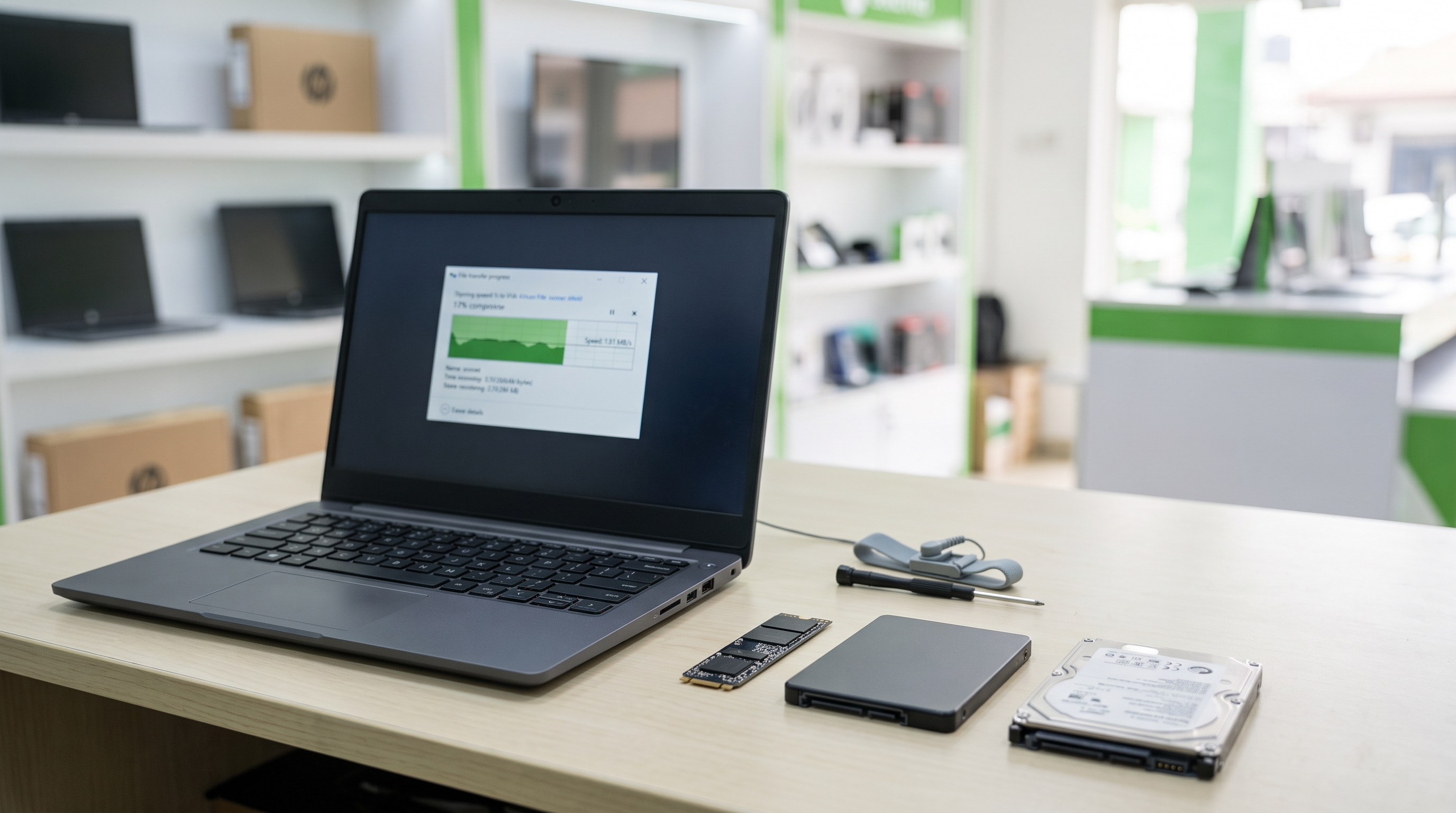
1. SATA SSD
A SATA SSD uses the SATA interface, which is also used by many traditional internal laptop HDDs.
A 2.5-inch SATA SSD can be a convenient upgrade for a laptop that supports a compatible 2.5-inch SATA drive.
SATA SSDs can significantly improve responsiveness when replacing an HDD, although the exact improvement depends on the computer and workload.
2. NVMe SSD
NVMe stands for Non-Volatile Memory Express.
NVMe SSDs typically communicate over PCI Express, commonly through an M.2 connector in laptops.
They can offer substantially higher data-transfer performance than SATA SSDs, making them attractive for demanding workloads involving large files, development tools and other storage-intensive applications.
However, M.2 is a physical form factor, not a guarantee that a drive supports NVMe. Some M.2 drives use SATA instead.
Before purchasing an NVMe SSD, confirm that your laptop supports the relevant M.2 form factor, interface and capacity.
Which should you choose?
For general browsing, office applications and schoolwork, a suitable SATA SSD may already provide a significant improvement over an HDD.
An NVMe SSD may be worthwhile if your laptop supports it and your workload can benefit from its performance.
Do not pay extra for an incompatible drive or assume that every M.2 SSD fits every laptop.
Is 256GB SSD Enough for a Laptop?
A 256GB SSD can be suitable for people with relatively modest storage requirements.
It may work well for:
Students writing assignments.
Office workers managing documents.
Users who primarily browse the internet.
People who store most large files externally or in cloud storage.
However, the operating system, applications, updates and personal files all occupy space.
Available storage is also lower than the advertised capacity because of how storage capacity is measured and because some space is used by the system.
If you regularly install large applications, download videos or store substantial project files, 256GB may become restrictive.
Before buying, estimate how much space your applications and existing files require.
Is 512GB SSD Better Than 256GB SSD?
For many general-purpose users, 512GB offers a useful balance between capacity and cost.
Compared with 256GB, it provides more room for applications, documents, photographs, downloaded files and project folders.
It may be particularly useful for:
University students with multiple applications.
Programmers working with development tools.
Business users maintaining local files.
Users who download media frequently.
People who prefer not to manage storage space regularly.
However, the best choice depends on your actual workload and budget.
If you mainly use web-based applications and keep very few files locally, 256GB may be sufficient.
If you install large software packages or manage many files, 512GB may be more convenient.
Should You Buy a 1TB SSD Laptop?
1TB SSD offers more storage capacity for users with substantial local storage requirements.
It may be worth considering if you:
Work with large photographs or video files.
Install several large games.
Maintain substantial development environments.
Store extensive business documents and project files.
Prefer keeping more data on your laptop rather than external storage.
1TB SSD is not necessary for everyone.
If your work primarily involves email, documents, browsing and online applications, a smaller SSD may meet your needs.
Compare the additional cost against the amount of storage you expect to use.
Can an SSD Make an Old Laptop Faster?
Yes, replacing a traditional HDD with a compatible SSD can make an older laptop feel considerably more responsive.
You may notice improvements in:
Windows startup.
Application launch times.
Opening and saving files.
General responsiveness when accessing stored data.
However, an SSD cannot resolve every performance problem.
If a laptop is slow because of insufficient RAM, a weak processor, malware, software problems or overheating, replacing its storage alone may not solve the underlying issue.
Before spending money on an upgrade, identify the main performance bottleneck.
Also check whether the laptop supports the intended SSD and whether the cost of the upgrade is reasonable relative to the computer's age and condition.
What Should You Check Before Upgrading Your Laptop Storage?
Before purchasing a replacement drive, verify these details.
1. Exact laptop model
Find the manufacturer's model number. Similar-looking laptops can support different storage configurations.
2. Supported interface
Determine whether the laptop supports SATA, NVMe over PCIe or another storage arrangement.
3. Physical form factor
Check whether the laptop uses a 2.5-inch drive, M.2 SSD or another configuration.
4. Available storage slots
Some laptops have only one internal drive slot. Others may support multiple drives, depending on the model.
5. Supported capacity
Consult the manufacturer's documentation to establish the supported drive capacities and any relevant limitations.
6. Existing data
Back up important files before replacing or modifying storage.
7. Operating system and software
Plan how Windows and your applications will be transferred or reinstalled. A new drive does not automatically contain your old files or installed software.
If you are unfamiliar with laptop hardware, consider professional assistance to avoid damaging components or losing data.
How to Maintain SSD and HDD Storage in Windows
Good storage habits can help you manage capacity and identify potential problems.
Keep sufficient free space
Avoid allowing the system drive to remain almost completely full. Windows and applications need working space for updates, temporary files and normal operation.
Back up important files
No storage drive is immune to failure. Maintain a separate backup of important documents, photographs and business files.
For particularly important information, consider keeping another backup separate from your laptop.
Monitor drive health
If your laptop becomes unusually slow, reports storage errors or makes unexpected mechanical noises, investigate promptly.
A clicking or grinding noise from a mechanical HDD can indicate a problem. Back up important files as soon as possible if the drive remains accessible, and avoid unnecessary use if failure is suspected.
Let Windows optimise the drive appropriately
Windows generally manages drive optimisation automatically.
Its built-in Defragment and Optimise Drives utility handles traditional HDD defragmentation and SSD optimisation differently. SSDs use TRIM-related optimisation rather than conventional HDD-style defragmentation.
Avoid running unfamiliar third-party tools that promise unrealistic performance improvements.
What Does SSD Storage Cost in Nigeria?
There is no single price for an SSD in Nigeria.
The final price depends on factors such as:
Capacity.
SATA versus NVMe interface.
Drive performance and model.
Manufacturer and product condition.
Seller and current availability.
Exchange-rate movements and supply conditions.
256GB SATA SSD and a high-performance 1TB NVMe SSD are different products, so comparing their prices without considering specifications can be misleading.
The same principle applies when comparing laptops. A laptop with an SSD may cost more than a similar-looking HDD model for reasons beyond storage alone.
As of October 2026, this article does not quote a specific Nigerian market price because a current, independently verified price list for the relevant drive models has not been established.
Before purchasing, request the price of the exact product, confirm its specifications and compare it with compatible alternatives.
Final Verdict: SSD or HDD?
For most people buying a laptop for everyday use, an SSD is the preferred choice for primary storage because of its speed, quiet operation and resistance to mechanical shocks.
SATA SSD can be a practical upgrade for a compatible older laptop, while an NVMe SSD can offer higher performance when supported by the computer.
An HDD can still make sense for affordable, high-capacity storage, especially for archives and backups.
Your decision should depend on your workload, storage requirements, laptop compatibility and budget rather than the largest capacity or highest advertised speed alone.
Looking for a Laptop in Ikeja, Lagos?
If you are buying a new laptop or considering a storage upgrade, understanding the difference between SSD and HDD technology can help you avoid paying for the wrong configuration.
Laptop Realm serves customers looking for laptops and technology products in Ikeja, Computer Village, Lagos.
You can contact Laptop Realm to enquire about available laptop configurations and compare options suited to your work, studies or business. Confirm the exact specifications, current price, availability and applicable product terms before making a purchase.