10 Things to Check Before Buying a Used Laptop in Nigeria (2026 Guide)
Buying a used laptop can be a practical way to get the computing features you need without paying for a brand-new device. However, a laptop that looks attractive on the outside may have a weak battery, faulty keyboard, damaged charging port or specifications that do not match your requirements.
Whether you are a student, programmer, business owner, or professional shopping for a laptop in Lagos, it is important to inspect the actual device before making payment.
The term UK-used is commonly encountered in the Nigerian laptop market, but a description of a laptop's origin does not guarantee its condition, remaining lifespan, or performance.
This guide explains ten important checks to perform before buying a used laptop, including how to verify its specifications, test its hardware and identify potential problems.
1. Verify the Processor Model and Generation
The processor affects how well a laptop handles applications, multitasking, and demanding workloads.
Do not choose a laptop based solely on a label such as Core i5 or Core i7. Processors within the same family can differ significantly in generation, performance, power consumption, and intended use.
For example, an older Core i7 laptop is not automatically faster than a newer Core i5 laptop.
How to check the processor
On a Windows laptop:
Press
Ctrl + Shift + Escto open Task Manager.Select the Performance tab.
Click CPU.
Note the processor model displayed.
You can also open Settings, select System, and then choose About.
Compare the exact processor model with the software requirements for your intended work.
For programming, consider the processor alongside RAM and storage. For office work and browsing, a suitable mid-range processor may be sufficient.
Buying tip: Ask for the exact processor model before comparing two laptops. Do not rely on the processor family name alone.
2. Check the Installed RAM and Storage
RAM and storage influence different aspects of laptop performance.
RAM provides working memory for applications, while the storage drive holds Windows, installed software and personal files.
Check the RAM
Open Task Manager and select Performance → Memory.
Confirm the installed capacity and consider whether it is sufficient for your workload.
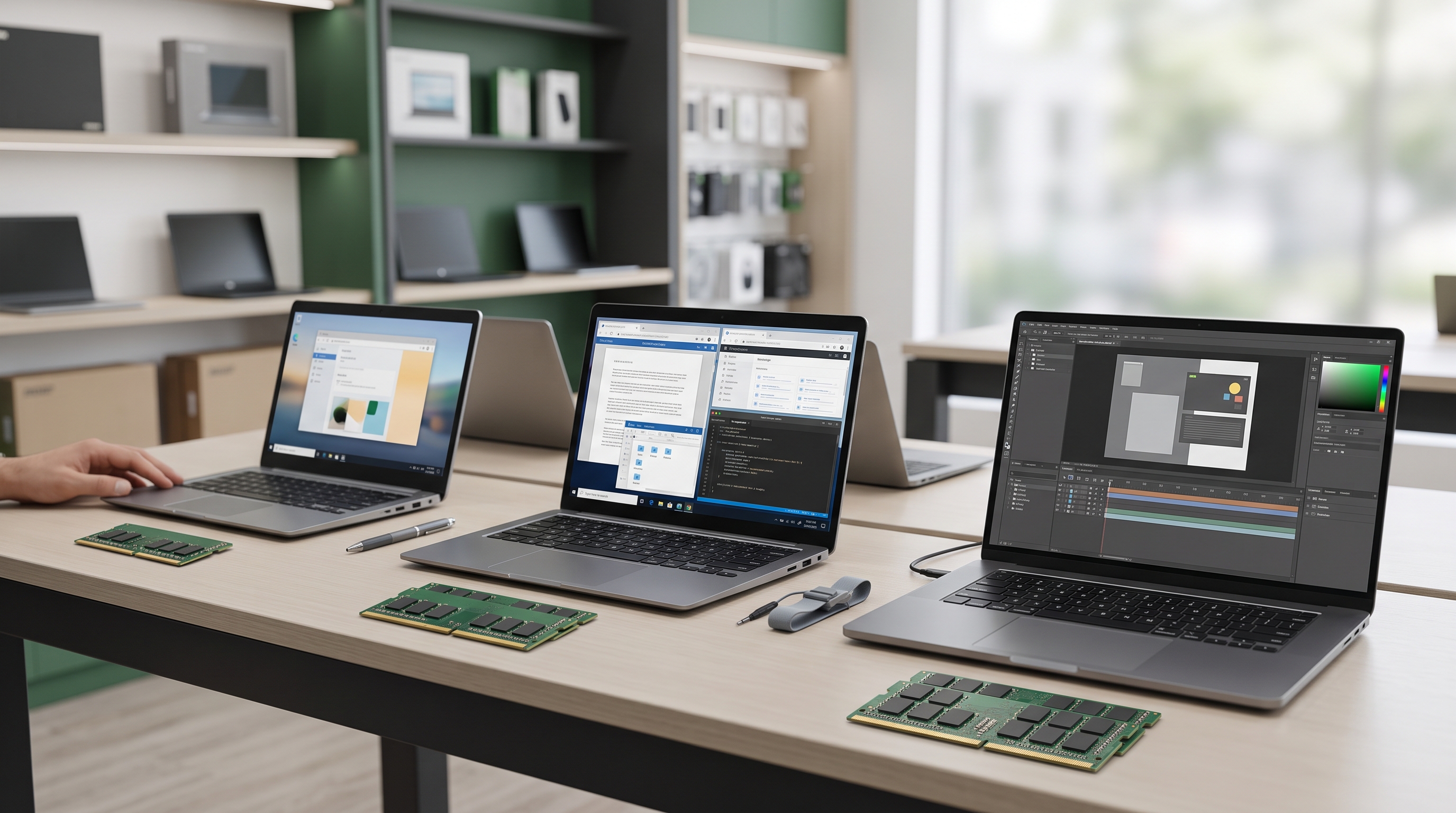
As a general buying guideline, 8GB can be suitable for basic everyday tasks, while 16GB provides more flexibility for multitasking and many programming or creative workloads.
Your actual requirements depend on the applications you use.
Check the storage drive
Open Task Manager and select Performance → Disk. Windows may identify the drive as an SSD or HDD.
You should also check the installed capacity under Settings → System → Storage.
An SSD is generally preferable for primary storage because it provides faster access to data than a traditional mechanical hard drive.
Before buying, confirm the advertised specifications against the actual device. If you are considering a future RAM or SSD upgrade, check whether the laptop supports it.
Read our related guides on [laptop RAM requirements] and [SSD vs HDD] once those internal links are available on the Laptop Realm website.
3. Inspect the Laptop Screen Carefully
A damaged display can make an otherwise functional laptop frustrating to use.
Open a plain white screen, then check darker backgrounds and different colours. Look for visible defects.
Check for:
Dead or stuck pixels.
Flickering.
Unusual lines across the display.
Dark patches or uneven brightness.
Screen discolouration.
Cracks or pressure marks.
Loose hinges that cause the display to move unexpectedly.
Move the screen gently through its normal range of motion. It should not feel excessively loose or produce unusual cracking sounds.
Also verify the screen size and resolution if these specifications matter to you.
Some display defects are more noticeable against particular backgrounds, so do not rely on a quick glance at the desktop.
Important: If you notice a defect, ask the seller to explain its nature and whether it affects the agreed condition of the device. Do not assume that a visible fault will be repaired after purchase.
4. Test Every Important Keyboard Key and the Touchpad
A laptop keyboard may appear clean while individual keys are faulty.
Open a text editor and test the keys systematically.
Check the letters, numbers, function keys, arrow keys, spacebar, Enter, Backspace and other keys you regularly use.
Pay attention to keys that stick, require excessive pressure or fail to register.
Test the touchpad by moving the pointer, clicking, scrolling and checking supported gestures.
If you use an external mouse, do not overlook the built-in touchpad. You may need it when travelling or working without a desk.
Also inspect the keyboard for signs of liquid damage, unusual discolouration or missing keycaps.
For programmers and writers, a faulty keyboard can be particularly inconvenient because these users spend substantial time typing.
5. Check Battery Health and Charging Behaviour
A used laptop may work correctly when connected to a charger but provide limited runtime when unplugged.
Battery condition matters if you intend to use the laptop during lectures, meetings, travel or power interruptions.
Generate a Windows battery report
On a compatible Windows laptop:
Open the Start menu.
Search for Command Prompt.
Open it.
Enter
powercfg /batteryreport.Press Enter.
Open the HTML report from the location displayed.
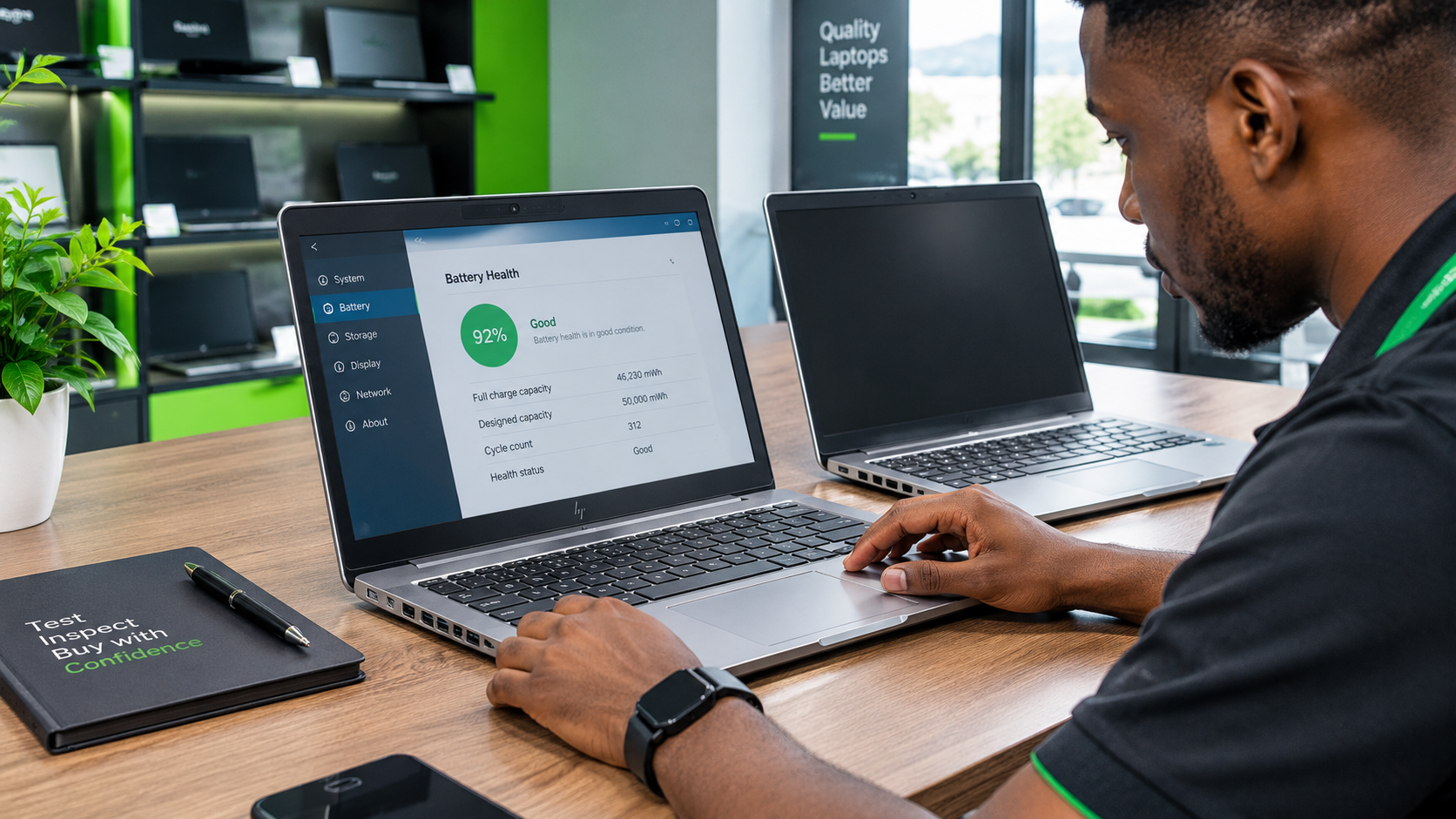
Compare the battery's design capacity with its full-charge capacity.
A substantial reduction can indicate battery wear, although the report should not be treated as a complete diagnosis of the battery.
Test the charger and charging port
Where possible, observe whether the laptop charges normally with the appropriate charger.
Check for intermittent charging, unusual connector looseness or unexpected shutdowns.
Do not deliberately run a severely depleted battery through repeated full discharge cycles just to test it.
Safety warning: Avoid purchasing a laptop for normal use without resolving visible battery swelling. A swollen battery should not be pressed, punctured, or handled as an ordinary cosmetic defect.
Ask the seller about the battery's condition and any applicable replacement or warranty terms before paying.
6. Inspect the Body, Hinges and Physical Ports
A used laptop will not always look brand-new. Minor cosmetic marks may be consistent with its stated condition.
The important distinction is between ordinary wear and damage that affects functionality or reliability.
Inspect the following:
Screen hinges and surrounding plastic.
Bottom cover and screws.
Keyboard and palm rest.
Charging connector.
USB ports.
HDMI or other display outputs, where present.
Headphone jack, where present.
Ethernet port, where present.
Memory-card reader, where present.
Check for cracks, missing screws, bent connectors and loose panels.
If practical, test the ports with compatible accessories. A port that looks intact may still fail to transfer data or provide a display connection.
Listen for unusual fan noise and check whether the laptop becomes excessively hot during ordinary tasks.
Do not dismantle a device without permission or the necessary technical expertise.
7. Confirm Windows Activation and Operating-System Support
The installed operating system is another important consideration.
On Windows 11, open Settings → System → Activation to check the activation status.
However, successful Windows activation does not by itself prove that the software is genuine or properly licensed. Microsoft explicitly distinguishes activation from software validation.
If the seller advertises a licensed Windows installation, ask what licence applies to the device and what documentation or entitlement is included.
Check Windows 11 compatibility
Microsoft's published Windows 11 requirements include a supported processor, at least 4GB RAM, at least 64GB of storage, TPM 2.0 and other hardware and firmware requirements.
Meeting the minimum requirements does not necessarily mean a laptop will provide comfortable performance for your workload.
Also check the operating system's support status. Standard Windows 10 support ended on 14 October 2025. As of October 2026, a laptop running Windows 10 should not be assumed to receive regular security updates unless it qualifies for and is enrolled in an applicable extended-security programme.
Before buying an older laptop, verify whether it can run a supported operating system and whether that operating system meets your software requirements.
Official Microsoft documentation provides the current requirements and activation guidance.
8. Test the Webcam, Speakers, Microphone and Wireless Connectivity
These components are easy to overlook when inspecting a laptop quickly.
If you need the laptop for online classes, remote work or video meetings, test them before purchasing.
Webcam
Open the Windows Camera application, where available, and check whether the image appears normally.
Speakers and microphone
Play an audio sample and check for distortion, crackling or unusually low output.
Use a microphone test or recording application to confirm that the microphone captures sound.
Wi-Fi and Bluetooth
Connect to a Wi-Fi network if available. If Bluetooth is important to you, test it with a compatible accessory.
Also check whether the laptop recognises external devices correctly.
A laptop intended for remote work should be evaluated as a complete working system, not simply as a processor, memory and storage combination.
9. Check the Price Against the Laptop's Actual Condition
The lowest advertised price is not necessarily the best value.
A laptop with a weak battery, insufficient storage or a damaged screen may require additional spending after purchase.
When comparing two used laptops, consider:
Exact processor model.
RAM capacity and upgrade options.
SSD or HDD type and capacity.
Screen condition.
Battery health.
Keyboard and port functionality.
Physical condition.
Operating-system compatibility.
Included charger and accessories.
Applicable warranty or return terms.
Ask the seller to explain whether the device is new, used, refurbished or open-box. These descriptions can be used differently by different sellers, so confirm what they mean for the particular product.
A refurbished laptop may have undergone repairs or component replacement, but the word alone does not establish the quality of the work.
Similarly, a UK-used laptop is not automatically in better condition than another used laptop.
What about laptop prices in Nigeria?
Prices vary by processor, model, generation, condition, configuration, accessories, seller and current availability.
There is no reliable single price for every used Core i5, Core i7 or business laptop.
Instead of relying on a generic price list, compare the exact model and specifications of the devices being offered.
Asking for the total price and any applicable warranty terms can help you make a more informed decision.
10. Ask About the Warranty, Receipt and Return Terms
Before completing the purchase, clarify what happens if the laptop develops a fault shortly afterwards.
Ask the seller:
Is any warranty included?
What does the warranty cover?
How long does it last?
Does it cover the battery, charger or other accessories?
What is the process for reporting a fault?
Are returns or exchanges permitted, and under what conditions?
Do not assume that every used laptop includes a warranty or that all sellers offer the same return arrangements.
If the seller provides written terms, retain a copy.
Request a receipt that accurately identifies the purchase and the seller. Keep any relevant product details and transaction records.
Before leaving, confirm that the laptop, charger and any agreed accessories are included.
A Quick Used-Laptop Inspection Checklist
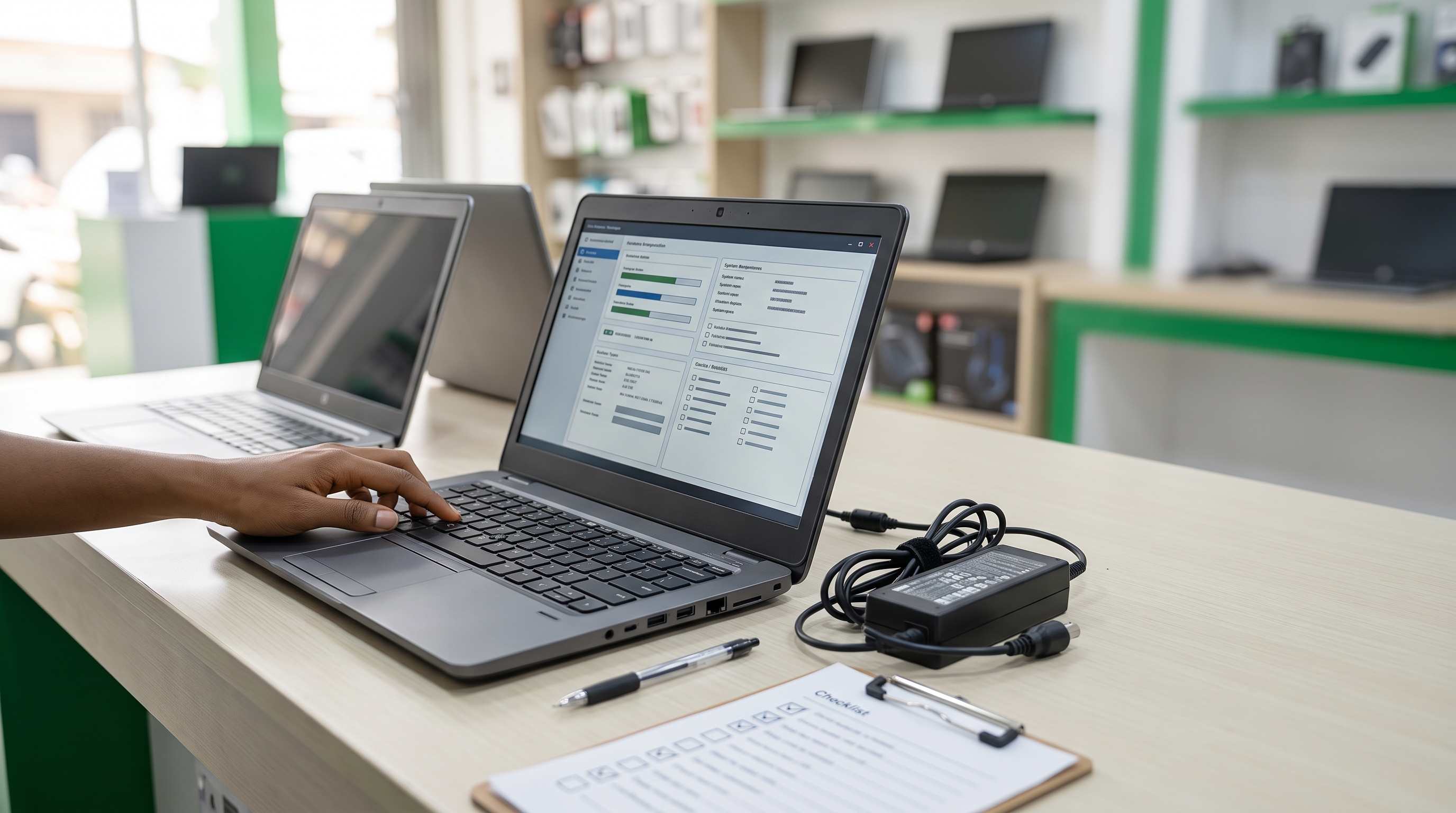
Use this checklist when comparing laptops in Ikeja or elsewhere in Lagos.
| Inspection item | What to verify |
|---|---|
| Processor | Exact model and generation |
| RAM | Installed capacity and upgradeability |
| Storage | SSD or HDD, capacity and condition |
| Screen | Pixels, lines, brightness and physical damage |
| Keyboard | All important keys register correctly |
| Touchpad | Pointer movement and clicking work |
| Battery | Reported capacity and charging behaviour |
| Charger | Correct, compatible and functioning |
| Ports | Relevant USB and display connections work |
| Webcam and audio | Camera, speakers and microphone function |
| Wi-Fi | Connects to a suitable network |
| Operating system | Activation status, licence information and support compatibility |
| Physical condition | Hinges, casing, screws and signs of damage |
| Seller terms | Receipt, warranty and return conditions |
If you cannot complete every test, ask which checks remain outstanding and whether the seller will allow you to complete them before purchase.
Final Thoughts: Buy Based on Evidence, Not Appearance Alone
Buying a used laptop can offer value, but the right choice depends on the condition of the actual device and whether its specifications match your needs.
Check the processor, RAM, storage, battery, screen, and keyboard. Confirm operating-system compatibility, test essential connections, and clarify the seller's terms.
Do not rush into payment simply because a laptop looks attractive or the seller describes it as a bargain.
Looking for a Laptop in Ikeja, Lagos?
Laptop Realm serves customers looking for laptops and technology products in Ikeja, Computer Village, Lagos.
If you are comparing laptops for school, business, programming, or everyday computing, contact Laptop Realm to enquire about available options.
Share your budget and intended use so you can compare suitable configurations. Before purchasing, confirm the actual product's specifications, condition, current price, and applicable warranty terms.