Laptop Overheating in Nigeria: 8 Causes, Safe Fixes and When to Get Help (2026)
Does your laptop become unusually hot after a few minutes of use? Perhaps the fan runs loudly, Windows becomes sluggish, or the computer suddenly shuts down while you are working.
Laptop overheating can be frustrating, particularly when you depend on your computer for business, programming, online classes, remote work or video editing.
However, a warm laptop does not automatically mean it is faulty. Modern processors generate heat when performing demanding tasks, and cooling fans increase their speed to manage that heat. The concern arises when the laptop becomes excessively hot, performs abnormally or repeatedly shuts down.
This guide explains eight common causes of laptop overheating, safe troubleshooting steps, and the warning signs that indicate your laptop may need professional attention.
- Blocked Cooling Vents and Dust Accumulation
Dust and debris can accumulate around a laptop's cooling vents and internal fan over time. When airflow becomes restricted, the cooling system may struggle to remove heat efficiently.
This can happen in laptops used regularly in homes, offices, shops and other dusty environments.
Common warning signs
he cooling fan runs loudly or continuously.
Hot air does not seem to leave the vents effectively.
The laptop becomes hotter during ordinary tasks.
Performance decreases during demanding applications.
How to address the problem safely
Shut down the laptop completely.
Disconnect its charger and external accessories.
Place the laptop on a clean, hard surface.
Inspect the exterior ventilation openings for visible dust.
If appropriate for the device, follow the manufacturer's instructions for cleaning the vents.
Some manufacturers recommend using canned compressed air to remove dust from external vents while the computer is switched off. Avoid forcing objects into the vents or opening the chassis if you are unfamiliar with laptop hardware.
For example, HP provides instructions for cleaning laptop vents and reducing overheating.
If dust is trapped deep inside the cooling assembly, a technician may need to inspect and clean the internal components.
2. Too Many Background Applications
Your laptop may become hot because the processor is working harder than necessary.
Applications performing updates, browser tabs running complex scripts, background synchronisation and demanding software can increase processor utilisation.
This is particularly noticeable on older laptops or computers with limited processing resources.
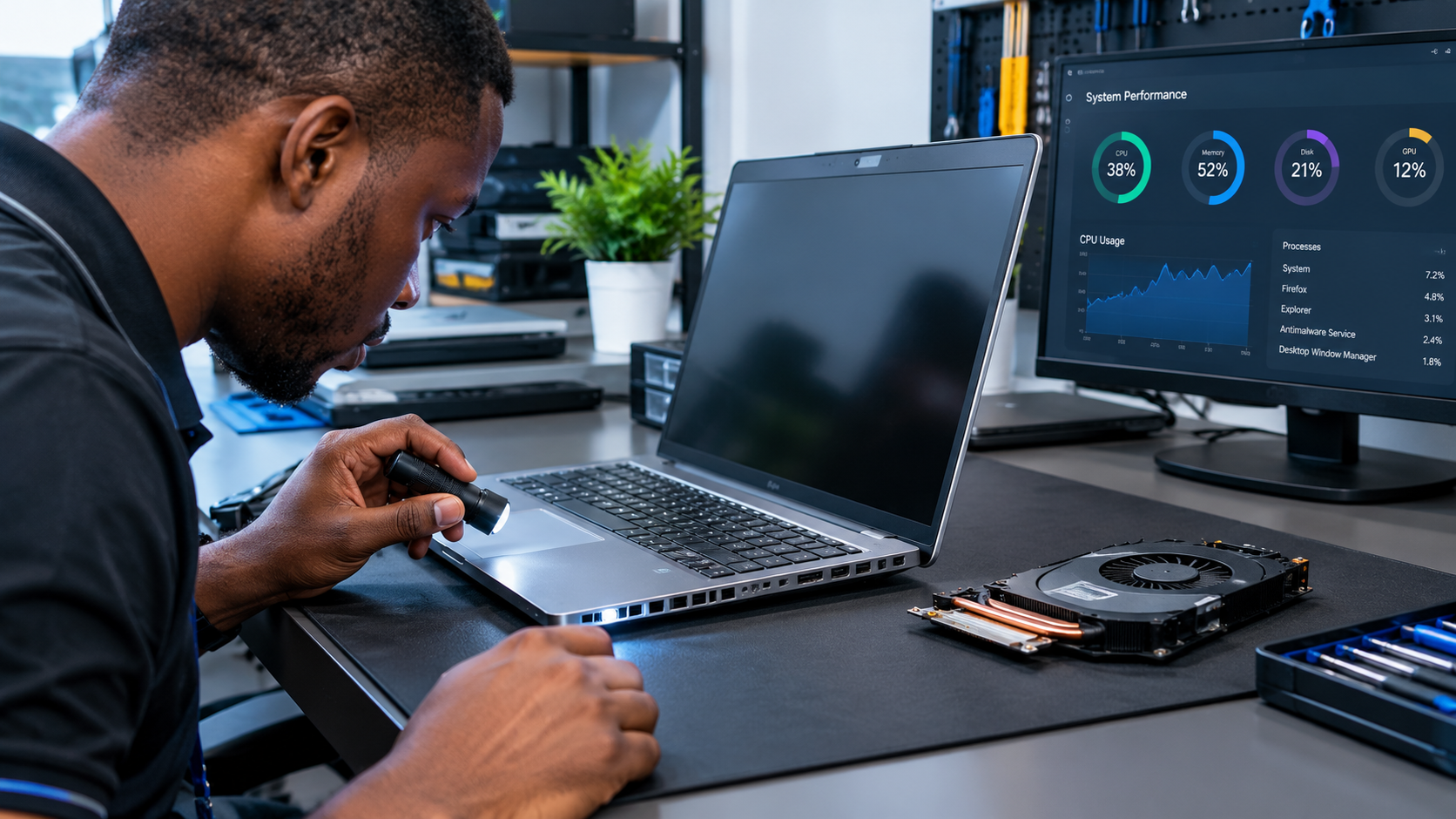
How to identify high CPU usage in Windows
Press Ctrl + Shift + Esc to open Task Manager.
Select the Processes section.
Click the CPU column to sort processes by processor usage.
Identify applications consistently consuming substantial resources.
Close applications you recognise and no longer need.
Do not terminate unfamiliar system processes indiscriminately. Some are essential for Windows to function correctly.
If a particular application repeatedly consumes excessive resources, update it or investigate whether it is behaving as expected.
Lenovo's troubleshooting guidance also recommends checking processor utilisation, closing unnecessary applications and inspecting ventilation when a laptop fan runs faster than expected.
3. Using Your Laptop on a Bed, Sofa or Pillow
Where you place your laptop can affect its cooling performance.
Soft surfaces may obstruct ventilation openings underneath or along the sides of the computer. This reduces the airflow available to the cooling system.
If you frequently use your laptop on a bed or sofa, try moving it to a desk or another firm, level surface.
Better laptop-use habits
Use a stable desk or table.
Keep ventilation openings unobstructed.
Avoid covering the laptop with clothing or bedding.
Do not place the laptop directly beside another heat-producing device.
Keep the area around the vents clear.
A laptop stand may help if its design improves airflow without obstructing the manufacturer's intended ventilation path.
A cooling pad is another option for certain workloads, but it should not be treated as a guaranteed solution to a faulty fan or blocked internal cooling system.
4. Demanding Software, Gaming and Heavy Workloads
A laptop performing intensive work can become noticeably warmer than one used for browsing or document editing.
Examples include:
Video rendering and editing.
Modern computer games.
Large software builds.
Virtual machines and development environments.
Large image-processing projects.
Intensive scientific or engineering applications.
These workloads can increase CPU or GPU activity, causing the cooling system to work harder.
What can you do?
If your laptop becomes hot during a demanding task:
Close unrelated applications.
Save your work before changing settings.
Reduce game graphics settings if appropriate.
Use a balanced power profile where available.
Allow the laptop to cool between intensive sessions if necessary.
A louder fan during a heavy workload does not automatically indicate a defect. However, repeated thermal warnings, severe performance drops or unexpected shutdowns deserve further investigation.
If the laptop overheats during basic browsing or document editing, investigate other possible causes rather than assuming the workload is responsible.
5. A Faulty Cooling Fan or Cooling Assembly
Laptop fans contain moving components that can wear out or become damaged.
A failing fan may struggle to move air through the cooling system, even when the vents appear clean.
Possible warning signs include:
Grinding, rattling or clicking noises.
A fan that repeatedly starts and stops abnormally.
Little or no airflow when the system should be cooling.
Persistent overheating despite unobstructed vents.
Unexpected thermal shutdowns.
The appropriate repair depends on the laptop model and the actual fault.
Do not assume that replacing the fan will solve every overheating problem. A technician may also need to inspect the heatsink, internal airflow path, temperature sensors and other cooling components.
If you hear unusual mechanical noises or suspect the fan has stopped working, avoid extended demanding use until the laptop has been checked.
6. Outdated Software, Drivers or Firmware
Cooling behaviour is partly controlled by software and firmware that manage processor performance, power consumption and fan operation.
An outdated or malfunctioning driver, firmware issue or system process may contribute to abnormal performance or fan behaviour.
Safe troubleshooting steps
Step 1: Restart Windows
A restart can clear temporary software problems and stop some unnecessary background activity.
Step 2: Check Windows Update
Open Settings, navigate to Windows Update and check for appropriate updates.
Step 3: Check the manufacturer's support page
Find the official support page for your exact laptop model. Review applicable chipset, thermal-management and firmware updates.
Step 4: Follow the manufacturer's instructions
BIOS or firmware updates require particular care. Confirm the exact model and follow the official procedure. Do not interrupt an update once it has started.
A BIOS update is not necessary for every overheating problem, so establish whether the manufacturer recommends one for your device and symptoms.
Dell's official guidance discusses thermal troubleshooting, fan behaviour, firmware and relevant system drivers. See its laptop temperature and fan-noise troubleshooting guide.
7. Deteriorated Thermal Interface Material
Inside many laptops, thermal interface material helps transfer heat from the processor or graphics chip to the cooling assembly.
Depending on the device and its operating conditions, deterioration, poor contact or other cooling-system problems can reduce heat transfer.
However, overheating alone does not prove that the thermal paste needs replacing.
Other possible causes include dust, a defective fan, a damaged heatsink or excessive processor activity.
What should you do?
If the laptop continues to overheat after basic troubleshooting, ask a qualified technician to inspect the cooling assembly.
The technician can determine whether cleaning, correcting a mounting problem, replacing thermal interface material or performing another repair is appropriate.
Opening a laptop and removing the heatsink requires care. Incorrect reassembly can create additional problems, and some devices have complicated cooling designs.
If the laptop is under warranty, check the applicable terms before authorising work that could affect coverage.
8. A Battery or Power-Related Hardware Problem
Heat can sometimes be associated with a battery, charging system or other hardware fault.
This possibility deserves particular attention if the laptop becomes unusually hot around the battery or charging connector.
Warning signs that require immediate attention
A swollen or bulging battery.
A burning smell.
Smoke, sparks or visible melting.
A charging connector that becomes abnormally hot.
A battery or chassis that has visibly deformed.
If you notice these signs, stop using the laptop, disconnect power if it is safe to do so, and keep away from the device if there is smoke or an immediate fire risk.
Do not press, puncture or attempt to remove a swollen battery yourself. Arrange appropriate professional assistance.
A warm power adapter or laptop does not necessarily indicate a fault, but unusual heat combined with physical damage or a burning smell should never be ignored.
How to Troubleshoot Laptop Overheating Step by Step
If your laptop is getting hot but shows no immediate electrical or battery safety warning signs, use this checklist.
| Step | Action | What it helps establish |
|---|---|---|
| 1 | Move the laptop to a hard, level surface | Whether ventilation was obstructed |
| 2 | Restart the computer | Whether temporary software activity contributed |
| 3 | Check CPU usage in Task Manager | Whether an application is consuming excessive resources |
| 4 | Inspect the external vents | Whether visible dust or obstruction may restrict airflow |
| 5 | Check for appropriate system and manufacturer updates | Whether a known software or firmware issue may be relevant |
| 6 | Observe fan behaviour during ordinary use | Whether abnormal noise or cooling behaviour persists |
| 7 | Seek professional diagnosis if symptoms continue | Whether internal cleaning or hardware repair is necessary |
Change one thing at a time where practical. This makes it easier to identify which action, if any, improves the problem.
Remember that these steps cannot conclusively diagnose every laptop fault. If the computer continues to overheat, a technician may need to inspect it.
Does a Cooling Pad Fix Laptop Overheating?
A cooling pad can improve airflow beneath some laptops, depending on the design of the computer and the pad.
It may be useful for people who work for long periods, play games or run demanding applications.
However, a cooling pad cannot reliably correct every underlying fault.
For example, it will not repair a damaged internal fan, replace deteriorated thermal interface material or resolve every firmware problem.
Before buying one, check whether your laptop's ventilation design is compatible with the pad and whether it addresses your particular use case.
If your laptop repeatedly shuts down from overheating, identify the cause instead of relying solely on additional external cooling.
When Should You Take Your Laptop to a Technician?
Consider professional diagnosis if:
The laptop repeatedly shuts down unexpectedly.
The fan makes grinding or rattling noises.
The device becomes unusually hot during light use.
The cooling system appears not to function properly.
The problem continues after basic troubleshooting.
The laptop has physical damage or suspected liquid exposure.
You suspect a battery, charging or internal hardware fault.
Professional diagnosis is particularly useful when several symptoms occur together.
For example, a laptop that becomes hot, slows down and shuts down may have a cooling problem, but the precise cause should be established before parts are replaced.
Avoid paying for an assumed repair before the technician has identified the fault and explained the proposed solution.
How to Prevent Laptop Overheating
Good maintenance habits can reduce the likelihood of avoidable cooling problems.
Keep the vents clear. Avoid using the laptop on soft surfaces that obstruct airflow.
Keep the exterior clean. Remove dust from accessible surfaces using appropriate cleaning methods.
Manage demanding applications. Close unnecessary applications when they are not needed.
Use the correct charger. Follow the manufacturer's power specifications and avoid incompatible or damaged charging equipment.
Install appropriate updates. Keep Windows and supported manufacturer drivers up to date.
Watch for changes. New fan noises, repeated shutdowns or unusual heat during light tasks can indicate a developing problem.
Arrange maintenance when necessary. If internal dust or a cooling fault is suspected, have the device inspected rather than repeatedly attempting unverified fixes.
Need Help With a Laptop Problem in Ikeja, Lagos?
A laptop that runs unusually hot can disrupt your work, studies, or business. The important thing is to distinguish normal operating heat from symptoms that indicate a problem.
Start with safe checks: ensure proper ventilation, inspect application activity, and observe whether the issue persists. Seek professional diagnosis if the problem continues or you notice warning signs.
Laptop Realm serves customers looking for laptops and technology products in Ikeja, Computer Village, Lagos.
If you are experiencing persistent laptop overheating or considering a replacement laptop, contact Laptop Realm to enquire about relevant product options and available assistance. Confirm the specific services offered, current availability and applicable terms before proceeding.
The goal is not simply to make your laptop cooler. It is to identify the cause, protect your equipment and choose the right next step.