
Laptop Buying Guides
10 Things to Check Before Buying a Used Laptop in Nigeria
0000-00-00
7 min read
Buying a used laptop in Nigeria? Learn 10 essential checks for battery health, processor, RAM, SSD, screen, Windows compatibility and warranty before you pay.
Buying a used laptop can be a practical way to get a capable computer without paying the price of a brand-new model. Whether you are a student, business owner, programmer, remote worker or content creator, the right used laptop can handle your daily tasks reliably.
However, not every affordable laptop is a good deal. A machine may look clean but have a weak battery, hidden screen faults, overheating problems or storage that is close to failure.
If you are planning to buy a used laptop in Nigeria, use this guide to inspect the important components before making payment. These checks are especially useful when comparing laptops in Lagos and Computer Village, Ikeja.
1. Check the processor generation and model
The processor affects how well a laptop handles applications, multitasking and demanding workloads.
Do not judge a laptop by the words Core i5 or Core i7 alone. An older Core i7 may be less suitable than a newer Core i5, depending on the exact processors being compared.
Before buying, check:
- The full processor model and generation.
- Whether the processor meets your software requirements.
- The laptop's intended workload.
- Whether the processor and configuration match the seller's description.
For browsing, document editing and online classes, a modest business laptop may be sufficient. Programming, video editing and demanding creative applications may require more processing power.
2. Inspect the RAM
RAM determines how much data and how many applications your laptop can handle at once without excessive slowdowns.
For everyday use, 8GB RAM is a reasonable starting point. If you regularly use development tools, multiple browser tabs, virtual machines or creative software, 16GB or more may be more appropriate.
Before buying, find out:
- How much RAM is installed.
- Whether the memory is upgradeable.
- The maximum supported RAM.
- Whether any memory slot is faulty or occupied.
Do not assume every laptop can be upgraded. Some models have memory soldered directly to the motherboard.
3. Test the SSD or hard drive
Storage affects boot time, application loading, and file access. An SSD generally provides a more responsive experience than a traditional mechanical hard drive.
Ask the seller whether the laptop uses an SSD or HDD, and confirm the installed capacity.
During inspection:
1. Open the operating system and check the available storage.
2. Confirm the drive model and capacity.
3. Check for unusual noises from a mechanical drive.
4. Review the drive's health using a reputable diagnostic tool where possible.
5. Look for freezing, repeated errors or unusually slow file access.
A laptop with an older processor but a healthy SSD can feel more responsive than a similar machine running from a slow hard drive. However, an SSD cannot compensate for every hardware limitation.
4. Check the battery health
Battery condition is particularly important if you intend to use your laptop in lectures, meetings or places where a power outlet is not always available.
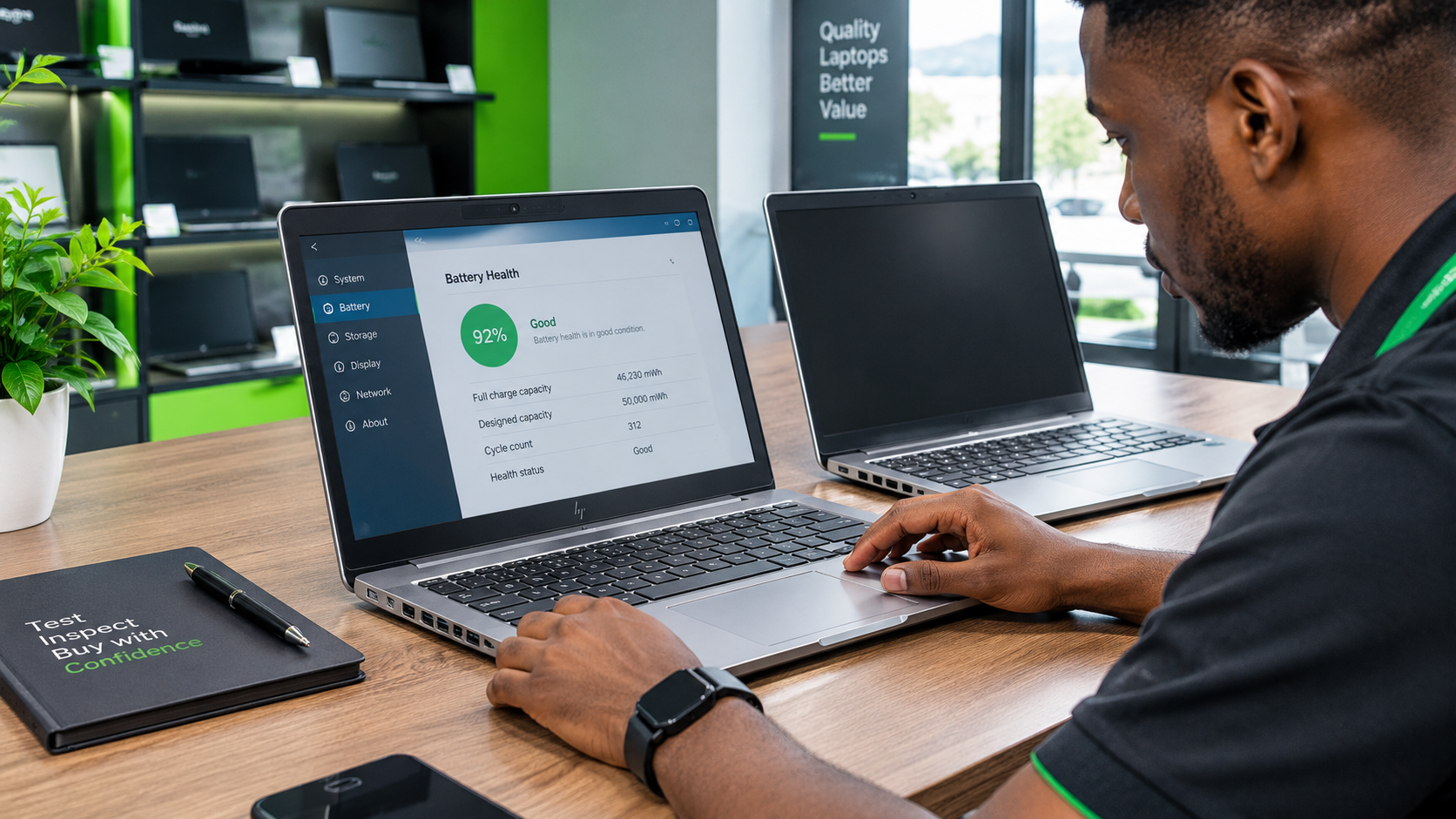
Disconnect the charger and observe whether the laptop continues running normally. Check the battery percentage, charging behaviour and any battery-health report the operating system provides.
On supported Windows laptops, you can generate a battery report using Command Prompt:
powercfg /batteryreport
Open the generated report and compare the battery's design capacity with its full charge capacity.
A large difference indicates reduced battery capacity, although the report alone cannot guarantee how long the laptop will last in everyday use.
Ask whether a replacement battery is needed and factor that potential cost into your budget.
5. Examine the screen carefully
Display faults can be expensive or inconvenient to repair.
Open a plain white background, a dark background and several different colours. Check for:
- Dead or stuck pixels.
- Lines across the display.
- Flickering or unusual brightness changes.
- Bright spots, pressure marks or discolouration.
- Loose hinges or a screen that does not stay in position.
Move the lid gently through its normal range and watch for flickering. Avoid forcing stiff hinges.
Also confirm the screen size and resolution match the advertised specifications.
6. Test the keyboard, touchpad and ports
A laptop may appear functional even when individual keys or connection ports have failed.
Test every keyboard key, including the function keys, arrow keys and power button. Check the touchpad, physical buttons and any fingerprint reader.
Test the available ports where possible:
- USB-A and USB-C.
- HDMI or other video output.
- Headphone jack.
- Charging connector.
- Wi-Fi and Bluetooth.
- Webcam and microphone.
- Card reader, if included.
If the laptop is advertised for remote work or online meetings, test the webcam, microphone, speakers, and wireless connection before paying.
7. Inspect the body, hinges, and cooling system
Cosmetic scratches are not necessarily a problem, but structural damage can indicate a previous drop or poor handling.
Look for cracked corners, bent chassis sections, missing screws, damaged hinges, and signs of liquid exposure.
Run the laptop for several minutes with ordinary applications open. Pay attention to excessive heat, unexpected shutdowns, unusual fan noise, or repeated freezing.
These symptoms do not always mean the laptop is defective, but they justify further inspection before purchase.
8. Verify the operating system and Windows compatibility
Confirm that the laptop boots into a legitimate, working operating system and that the advertised configuration matches what is installed.
For Windows laptops, check the Windows edition, activation status, available updates and device drivers.
Windows compatibility matters in 2026. Microsoft ended standard Windows 10 support on 14 October 2025, meaning it no longer receives routine free security updates through Windows Update. Some eligible devices may have access to additional security-update options, but buyers should not assume every machine is covered.
If you are buying a Windows laptop, check whether the exact model meets Windows 11 system requirements. Microsoft's official guidance is available through its Windows support website.
Avoid choosing a laptop solely because it has Windows already installed.
9. Check BIOS access, ownership and security
A laptop can have good specifications and still be unsuitable if it is locked or cannot be properly transferred to a new owner.
Before completing the purchase:
- Confirm that the laptop starts normally.
- Check for a BIOS or firmware password.
- Confirm that any company or school management restrictions have been removed through authorised processes.
- Check for activation or account-lock problems.
- Make sure the seller has the right to sell the device.
For Windows devices, verify that you can complete the normal setup and access the system legitimately. If a laptop is managed by an organisation, the seller should resolve that issue through the organisation's authorised administrator.
Do not accept assurances that a significant lock or ownership restriction will be fixed later without a clear resolution.
10. Confirm the condition, warranty and final price
Before paying, ask the seller to state the laptop's condition accurately.
Common descriptions include:
- Brand new: sold as new, with the stated new-product condition verified.
- UK used: previously owned or used, commonly imported from the UK; the label alone does not establish its condition.
- Open box: packaging has been opened, but the actual usage and condition should be confirmed.
Ask what warranty, if any, applies to the specific unit. Clarify the duration, coverage, exclusions and process for making a claim. Do not assume every used laptop includes a warranty.
Finally, compare the total cost with similar laptops of equivalent specifications and condition. Include any likely battery replacement, storage upgrade, RAM upgrade or repair expense.
A cheaper laptop is not necessarily better value if it requires immediate repairs.
Where can you buy a used laptop in Lagos?
Computer Village, Ikeja, is one location where shoppers can compare different laptop models and configurations. Whether buying in person or online, use the same inspection checklist and ask for the exact specifications and condition of the unit you intend to purchase.
Laptop Realm serves customers looking for laptops and technology products. Before visiting or making payment, enquire about current stock, pricing, condition, warranty terms, and available configurations.
Looking for a laptop for school, business, programming or everyday use? Contact Laptop Realm with your budget and intended use so you can enquire about suitable options.
Conclusion
Buying a used laptop in Nigeria does not have to be a gamble. Check the processor, RAM, storage, battery, screen, keyboard, ports, operating system, security restrictions, and warranty before paying.
Most importantly, inspect the actual laptop you will receive, not just a product photograph or a specification list.
Taking time to verify these details can help you avoid unsuitable purchases and choose a laptop that offers better value for your money.
Frequently Asked Questions
Q: What should I check before buying a used laptop in Nigeria?
Check the processor model, RAM, storage health, battery capacity, screen, keyboard, ports, hinges, cooling system, operating system, BIOS restrictions, and warranty terms. Test the actual unit before payment.
Q: Is a UK-used laptop good to buy?
It can be a good option if the specifications, condition, and price suit your needs. However, UK-used describes the laptop's market history, not its guaranteed quality. Inspect the battery, display, keyboard, storage, and other components carefully.
Q: Is Core i7 better than Core i5?
Not necessarily. Performance depends on the exact processor model, generation, power limits and cooling system. Compare specific processor models rather than relying on the Core i5 or Core i7 label alone.
Q: How much RAM do I need for a used laptop?
For general browsing, office applications and schoolwork, 8GB can be a reasonable starting point. Programming, heavy multitasking and creative workloads may benefit from 16GB or more, depending on the software.
Q: How do I check a used laptop battery?
Test the laptop unplugged, observe its charging behaviour and generate a battery report on supported Windows systems using powercfg /batteryreport. Compare the full charge capacity with the design capacity.
Q: Should I buy a laptop with Windows 10 in 2026?
Be cautious because standard Windows 10 support ended on 14 October 2025. Check whether the laptop supports Windows 11 or qualifies for an applicable extended security-update option before deciding.
Q: Where can I buy a used laptop in Ikeja?
You can compare options from laptop retailers in Computer Village, Ikeja, including Laptop Realm. Confirm current availability, the exact configuration, condition and warranty terms directly with the seller.
Tags:
No tags
Share: