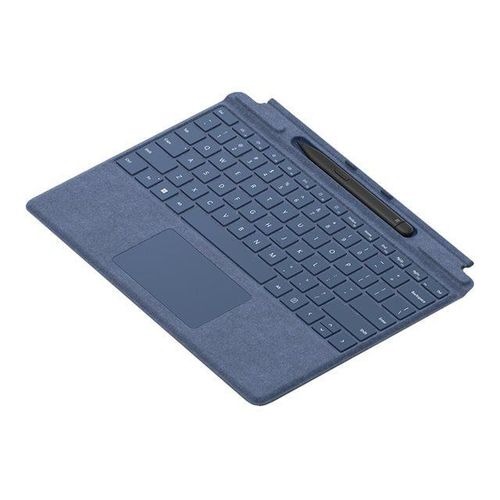
The Microsoft Surface Pro Keyboard with Slim Pen is a premium detachable keyboard designed to turn a compatible Microsoft Surface Pro tablet into a versatile laptop-style workstation. Combining a comfortable physical keyboard, precision glass touchpad, dedicated Windows and media controls, and integrated storage and charging for the Surface Slim Pen, this accessory provides an efficient solution for typing, navigation, creativity, note-taking, and everyday productivity.
Designed for compatible 13-inch Surface Pro devices, the keyboard attaches magnetically to the bottom of the Surface Pro, creating a secure connection without requiring a traditional cable. When attached, it provides a laptop-style typing experience while allowing users to remove the keyboard whenever they want to use the Surface Pro as a tablet. Microsoft lists compatibility with Surface Pro 11th Edition, Surface Pro 10 for Business, Surface Pro 9, Surface Pro 8, and Surface Pro X for the compatible 13-inch keyboard family.
One of the major advantages of this version is that it includes the Surface Slim Pen. The keyboard features an integrated storage tray where the pen can be securely stored and wirelessly charged. This keeps the stylus readily available for handwriting, drawing, annotations, signatures, navigation, and other touchscreen tasks.
The Surface Slim Pen is designed for digital writing and creative work on compatible Surface devices. Microsoft specifies 4,096 levels of pressure sensitivity for the Surface Slim Pen 2, along with support for tilt and other supported inking features depending on the Surface device being used.
The pen storage tray is particularly convenient for users who frequently switch between typing and handwriting. Instead of carrying the stylus separately, users can keep it securely inside the keyboard when it is not being used. The integrated charging function also helps keep the pen ready for use.
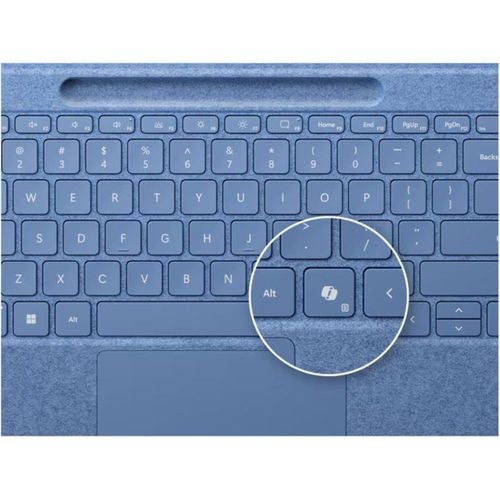
The keyboard itself features moving mechanical keys designed to provide a comfortable and familiar typing experience. It includes a full row of F1–F12 function keys together with dedicated controls for Windows shortcuts, media, screen brightness, and other commonly used functions.
A dedicated Copilot key is also included on current Surface Pro keyboard versions. On supported Windows 11 devices and in supported markets, this key provides quick access to Copilot features. Microsoft notes that Copilot functionality can vary according to the device, software configuration, and market.
The keyboard also includes dedicated microphone mute and snipping controls on the current Surface Pro keyboard design. These provide convenient shortcuts for online meetings and screenshots without requiring users to navigate through Windows menus.
The precision glass touchpad provides smooth and accurate pointer control. It allows users to navigate Windows, scroll through documents and websites, select items, and use supported touchpad gestures without needing to carry a separate mouse. Microsoft lists a 100.7 × 56.7mm mechanical touchpad for the Surface Pro Keyboard with Slim Pen for Business.
The keyboard is covered with Alcantara material, giving it a soft and premium surface designed for comfortable everyday use. The material also contributes to the distinctive appearance associated with Microsoft's premium Surface accessories.
The compact design makes the keyboard well suited to mobile users. It can be attached to a Surface Pro for office work and then folded or detached when the user wants to switch to tablet mode. This flexibility makes the Surface Pro platform suitable for people who regularly move between typing, touch interaction, handwriting, and presentations.
For professionals, the Surface Pro Keyboard with Slim Pen can provide a portable workstation for emails, documents, presentations, spreadsheets, meetings, research, web applications, and other business tasks. The physical keyboard is particularly useful when creating longer documents or entering large amounts of text.
The integrated Slim Pen adds another level of functionality for business users. It can be used for handwritten notes during meetings, marking documents, signing supported digital documents, highlighting information, or making annotations directly on the Surface display.
Students can also benefit from the combination of keyboard and pen. The keyboard can be used for essays, assignments, research, presentations, and online learning, while the Slim Pen can be used for handwritten notes, diagrams, annotations, and creative work.
For creative users, the Surface Slim Pen provides a natural input method for drawing, sketching, annotating images, and working with supported creative applications. Microsoft describes the Slim Pen as supporting accurate writing and shading capabilities on compatible Surface devices.
The keyboard is also suitable for remote workers. Its compact design makes it easy to create a laptop-style setup wherever a Surface Pro is being used. Users can attach the keyboard for typing during work sessions and remove it when they want a lighter tablet configuration.
For presentations, the Surface Pro can be used as a portable presentation device, while the keyboard provides access to productivity applications and the Slim Pen can be used for annotations or highlighting during supported presentation workflows.
The magnetic interface makes attaching the keyboard straightforward. Once the keyboard is positioned against the Surface Pro's connector, the magnets align the two devices and establish the physical connection.
The keyboard can also be folded against the Surface Pro when the device is being transported. This provides a convenient way to protect the display while keeping the keyboard attached.
Another advantage is the ability to switch quickly between laptop and tablet modes. Users who need to type can attach the keyboard, while those who want to read, browse, draw, or interact directly with the touchscreen can remove or fold it away.
The Slim Pen's integrated charging location helps reduce the possibility of misplacing the stylus. When the pen is placed in the keyboard's storage tray, it remains stored alongside the Surface Pro and can recharge through the keyboard's integrated charging system.