How to Choose the Right Laptop Screen in Nigeria: HD vs Full HD, IPS vs OLED (2026 Guide)
How to Choose the Right Laptop Screen in Nigeria: HD vs Full HD, IPS vs OLED
When buying a laptop, it is easy to focus on the processor, RAM and storage while overlooking the screen. However, the display affects how clearly you read documents, view photos, watch videos, design graphics and play games.
Two laptops can have similar processors and memory but offer noticeably different viewing experiences because of their display specifications.
If you are shopping for a laptop in Ikeja, Computer Village, Lagos, understanding these differences can help you choose a computer that suits your work without paying extra for features you may not need.
This guide explains laptop screen resolution, panel technology, brightness, refresh rate and colour accuracy, with practical recommendations for Nigerian buyers.
1. What Does Laptop Screen Resolution Mean?
Screen resolution describes the number of pixels used to display an image. Generally, more pixels can provide finer detail, although the result also depends on screen size, pixel density, scaling and the content being displayed.
Here are common laptop display resolutions.
| Display type | Common resolution | Suitable uses |
|---|---|---|
| HD | 1366 × 768 | Basic computing and budget-conscious use |
| Full HD (FHD) | 1920 × 1080 | Office work, studying, browsing and entertainment |
| WUXGA | 1920 × 1200 | Productivity, reading and multitasking |
| QHD or 2K-class | Often 2560 × 1440 or similar | Detailed work, creative applications and gaming |
| 4K UHD | 3840 × 2160 | High-detail media, photography and specialised creative work |
These are common examples rather than an exhaustive list. Manufacturers also use resolutions such as 1920 × 1200 and 2560 × 1600.
Is Full HD better than HD?
For many buyers, a Full HD display is a worthwhile choice because it provides more pixels than a typical 1366 × 768 HD screen.
This can make text and images appear sharper and provide more workspace for documents, spreadsheets and applications.
However, resolution alone does not determine display quality. A Full HD screen with poor brightness or limited viewing angles may be less pleasant to use than a well-designed display with other advantages.
Buying tip: If your budget allows, compare Full HD laptops first, especially if you spend several hours reading, studying or working with multiple windows.
2. IPS vs OLED vs TN: Which Display Technology Is Better?
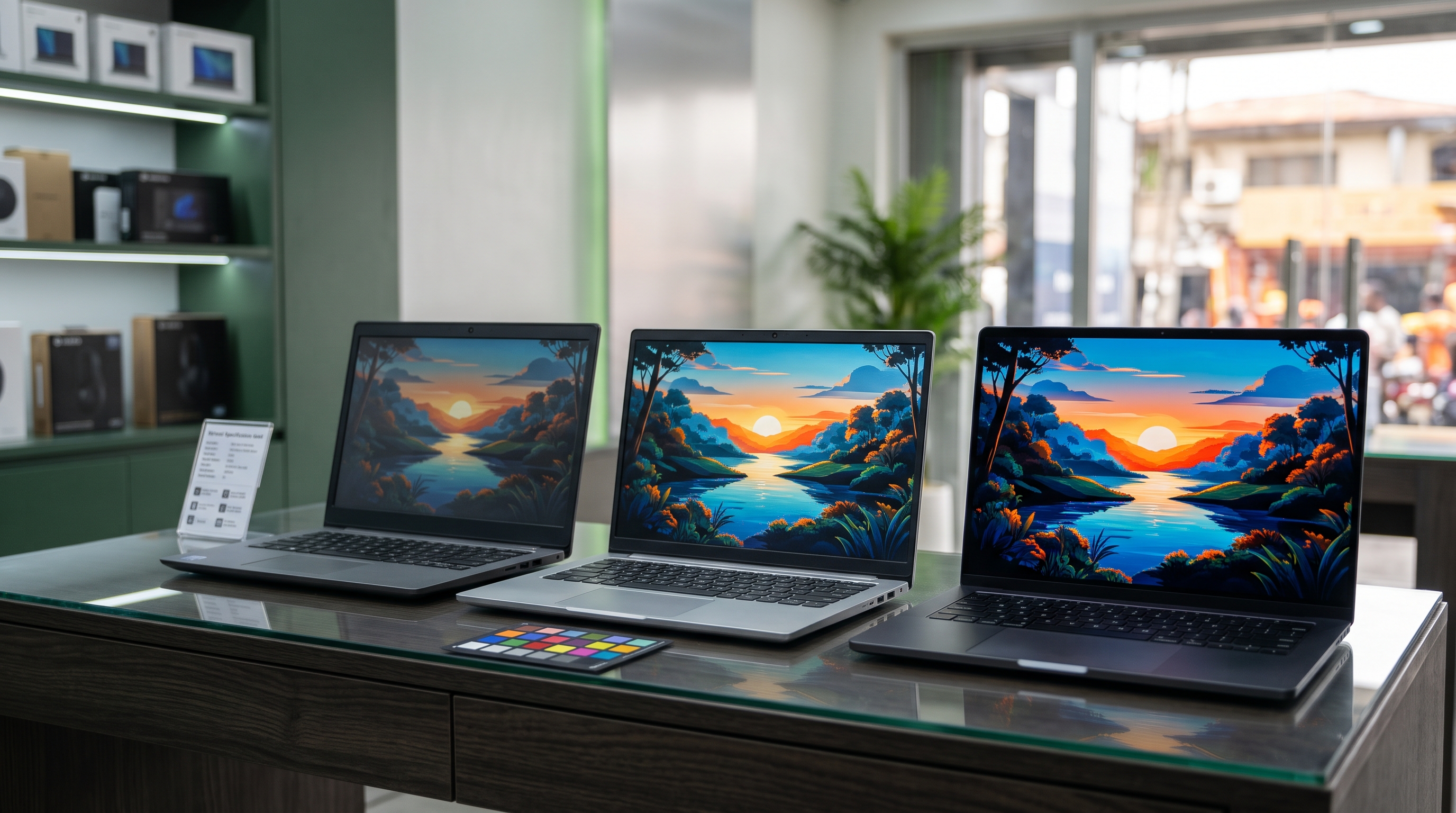
Resolution tells you how many pixels a display has. Panel technology affects how those pixels produce the image you see.
Three display technologies you may encounter are IPS, OLED and TN.
IPS displays
IPS stands for In-Plane Switching.
IPS displays are commonly used in laptops designed for productivity, education and general computing.
Their advantages often include:
- Wide viewing angles.
- Consistent-looking colours when viewed from different positions.
- Good suitability for reading and office applications.
- Availability in a wide range of resolutions and configurations.
However, not every IPS panel has excellent colour accuracy or brightness. Check the exact display specifications rather than relying on the IPS label alone.
OLED displays
OLED stands for Organic Light-Emitting Diode.
OLED pixels generate their own light, allowing individual pixels to switch off completely to produce deep blacks. This can provide excellent contrast and rich-looking images. HP
OLED may be particularly attractive for:
- Watching films.
- Photography and colour-sensitive creative work.
- Premium entertainment laptops.
- Users who value strong contrast and vibrant images.
OLED laptops can cost more than comparable models with simpler displays, depending on the configuration.
Some OLED displays also use brightness-control methods that may be noticeable to particularly flicker-sensitive users. If you are sensitive to screen flicker, compare the specifications of the individual laptop before purchasing.
TN displays
TN stands for Twisted Nematic.
TN panels are found in some older and budget-oriented laptops. Depending on the model, they may offer compromises in viewing angles, colour reproduction or other display characteristics.
They are not automatically unsuitable for every task, but they deserve careful inspection if display quality is important to you.
Which should you choose?
For everyday office work and studying, a good IPS display is a sensible starting point.
For premium media viewing and colour-focused work, OLED may be worth considering.
For a budget laptop, judge the actual screen rather than rejecting or selecting a device based on panel technology alone.
3. Why Laptop Screen Brightness Matters in Nigeria
Screen brightness determines how easily you can see the display under different lighting conditions.
It is commonly measured in nits, a unit of luminance.
A screen that looks acceptable in a dim room may be difficult to read beside a bright window or in a well-lit workspace.
As a general buying guide:
| Brightness | Practical consideration |
|---|---|
| Around 200–250 nits | Often adequate for controlled indoor lighting |
| Around 300–400 nits | Can be more comfortable in brighter indoor environments |
| 500 nits or more | Worth considering for particularly bright environments, depending on reflections and other display characteristics |
These ranges are general guidance, not a guarantee of visibility in every environment. Screen finish, contrast, ambient light and actual panel performance also matter. HP
Should you buy a laptop with a bright screen?
If you work in an office, attend classes or use your laptop in different indoor environments, a reasonably bright display can improve usability.
For outdoor use, brightness becomes even more important, but a glossy screen can still produce distracting reflections.
Practical advice: If possible, inspect the laptop at different brightness levels and check whether the display remains comfortable to view under the lighting conditions in which you expect to use it.
4. What Is the Difference Between 60Hz and 120Hz Laptop Screens?
Refresh rate describes how many times a display refreshes its image each second. It is measured in hertz (Hz).
A 60Hz display refreshes 60 times per second, while a 120Hz display refreshes 120 times per second.
A higher refresh rate can make scrolling, animations and supported games appear smoother.
Is 60Hz enough for everyday work?
For many students, office workers, business owners and general laptop users, 60Hz is perfectly adequate.
If your main activities include:
- Word processing.
- Browsing websites.
- Online meetings.
- Spreadsheet work.
- Watching ordinary video content.
You may not need to pay extra for a high-refresh-rate screen.
When is 120Hz or higher useful?
A higher refresh rate may be worthwhile if you:
- Play fast-paced games.
- Prefer smoother scrolling and animations.
- Use software that benefits from higher refresh rates.
- Have hardware capable of producing higher frame rates.
Remember that refresh rate is not the same as resolution or response time. A 120Hz Full HD screen and a 60Hz 4K screen offer different advantages.
For gaming, consider the display alongside the graphics hardware, processor and cooling system.
5. What Is Colour Accuracy, and Why Does It Matter?
Colour accuracy describes how faithfully a display reproduces colours.
This is especially important for photographers, graphic designers, video editors and other professionals who make decisions based on the appearance of colours.
You may encounter specifications such as 100% sRGB or a percentage of the DCI-P3 colour gamut.
These indicate how much of a defined colour space the display can reproduce.
A laptop with strong colour-space coverage can be more suitable for colour-sensitive work, although coverage alone does not guarantee accurate calibration.
Do students and office workers need a colour-accurate display?
Not necessarily.
If your main activities involve documents, browsing, email and spreadsheets, a comfortable display with suitable brightness and resolution may be more important than professional colour coverage.
For graphic design, photo editing and video production, check the exact colour-gamut specification and consider whether the display has suitable calibration.
Buying tip: If your work involves delivering designs to clients, do not choose a laptop for graphic design based on processor and RAM specifications alone. The screen deserves equal attention.
6. Which Laptop Screen Is Best for Different Users?
The right display depends on how you intend to use your laptop.
| User | Display features worth prioritising | Why |
|---|---|---|
| University student | Full HD or a suitable higher-resolution display | Clear text and comfortable reading |
| Office worker | Full HD IPS, comfortable brightness and an anti-glare finish | Practical for long working sessions |
| Programmer | Full HD or higher, with suitable workspace | Makes code and multiple windows easier to manage |
| Graphic designer | Good colour coverage, suitable resolution and accurate colours | Supports colour-sensitive work |
| Video editor | Resolution and colour reproduction suited to the workflow | Helps with reviewing footage and visual detail |
| Gamer | Suitable refresh rate, response characteristics and resolution | Supports smoother gameplay when hardware can keep up |
| Film enthusiast | Good contrast, colour reproduction and suitable resolution | Improves the viewing experience |
These recommendations are starting points, not strict requirements.
For example, a programmer may prefer a 16:10 display because it provides additional vertical workspace compared with a 16:9 screen of similar width. A gamer may prioritise refresh rate over extra resolution.
Your budget, laptop size and intended software should guide the final decision.
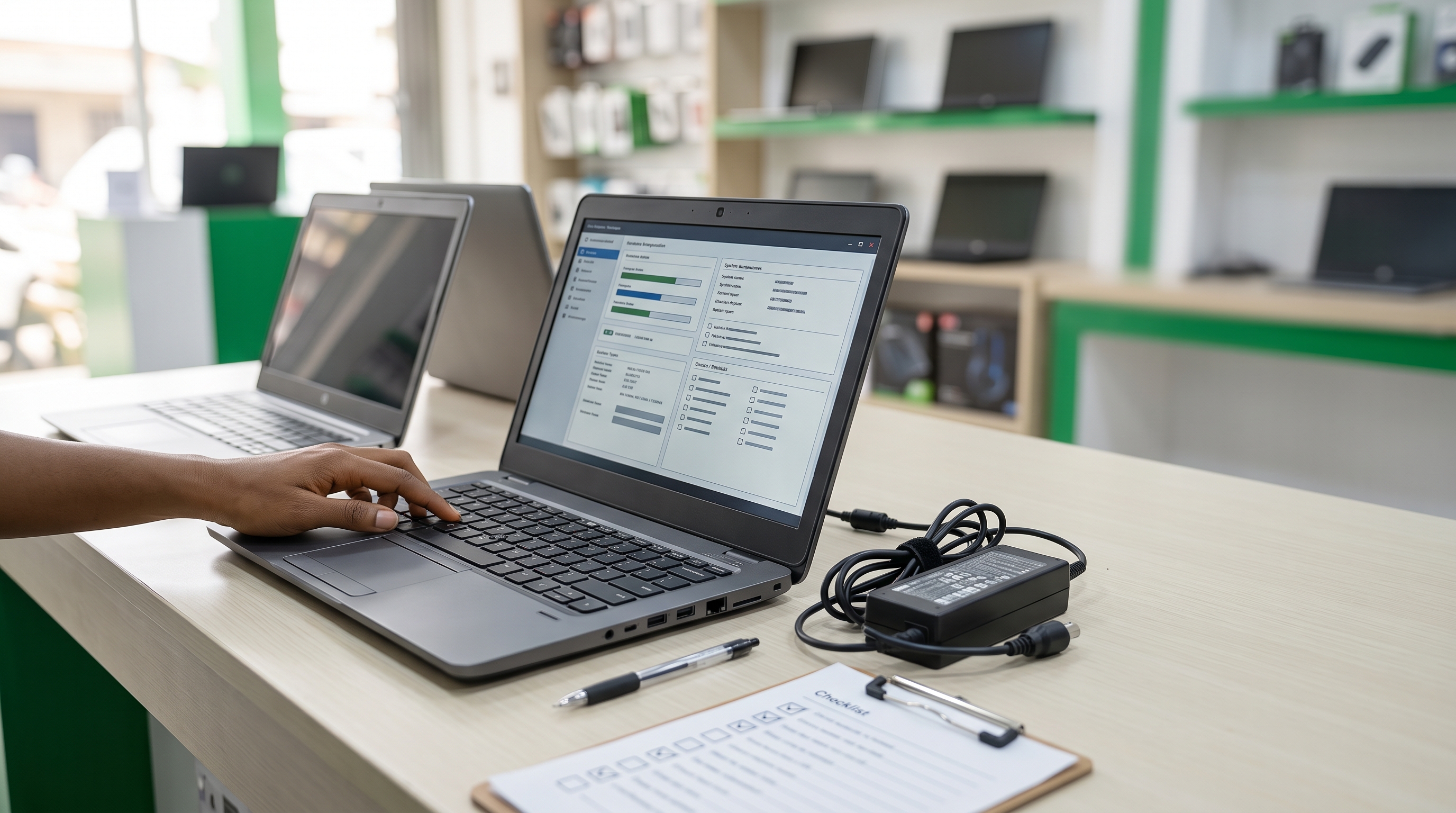
7. How to Test a Laptop Screen Before Buying
If you are buying a laptop in person, take a few minutes to inspect the display.
Step 1: Check for dead or stuck pixels
Display solid white, black, red, green and blue backgrounds where possible.
Look for pixels that remain a different colour from their surroundings.
Step 2: Inspect brightness and colour
Increase and reduce the brightness.
Check whether the display is comfortable to view and whether colours look unusually uneven.
Step 3: Look for flickering and lines
Open different applications and move windows around the screen.
Watch for flickering, persistent horizontal or vertical lines, or sudden changes in brightness.
Step 4: Move the screen through different angles
Check the display while sitting directly in front of it and while viewing it from the side.
This can help you judge viewing-angle behaviour.
Step 5: Inspect the physical screen
Look for cracks, pressure marks, scratches and uneven areas.
If the laptop is a convertible or touchscreen model, test the touch functionality if it is important to you.
Step 6: Confirm the advertised specifications
Do not assume the laptop has an IPS panel, touchscreen or 120Hz refresh rate simply because another version of the same model offers those features.
Manufacturers can sell the same laptop family with different display configurations.
8. How to Check Your Screen Resolution in Windows
If you already own a laptop and want to identify its current display resolution, Windows provides a built-in option.
- Open Settings.
- Select System.
- Select Display.
- Find Display resolution.
- Check the selected resolution.
Windows normally marks the recommended resolution for the display. Microsoft advises using the recommended setting in most circumstances because lower-than-native resolutions can make text appear less sharp or cause other display issues. Microsoft Support
This setting helps identify the current resolution, but it does not tell you everything about the physical panel. You may need the manufacturer's specifications to confirm panel type, brightness, colour coverage and refresh rate.
9. Does a Better Laptop Screen Always Mean a Better Laptop?
No.
A premium OLED display may look excellent, but it does not automatically make the entire laptop suitable for your needs.
Consider the complete configuration, including:
- Processor.
- RAM.
- SSD capacity.
- Graphics hardware.
- Battery life.
- Weight and portability.
- Keyboard and touchpad.
- Cooling system.
- Display specifications.
For example, a laptop intended for professional video editing needs suitable processing and graphics performance as well as an appropriate display.
Similarly, a student who mainly writes assignments and attends online classes may not benefit enough from a premium display to justify sacrificing other important specifications.
The goal is to find a balanced laptop rather than simply choosing the model with the most impressive screen specification.
Conclusion: Choose a Screen That Matches Your Work
When comparing laptops, look beyond the screen size.
Check resolution, panel type, brightness, colour accuracy and refresh rate. Consider the lighting conditions in which you work and whether you need a standard productivity display or something better suited to gaming and creative applications.
For many everyday users, a good Full HD IPS display is a practical starting point. OLED may be worth considering for users who prioritise contrast and rich colours, while gamers may benefit from a higher refresh rate.
Looking for a Laptop in Ikeja?
Laptop Realm serves customers looking for laptops and technology products in Ikeja, Computer Village, Lagos.
If you are comparing laptops for school, business, programming, graphic design or gaming, contact Laptop Realm to enquire about available options.
Share your budget, preferred screen size and intended use to help narrow down the specifications worth considering.
Before purchasing, confirm the exact display configuration, overall laptop specifications, condition and final price.
The best laptop screen is the one that makes your everyday work clearer, more comfortable and more productive.